
Xero tracking categories let you split your income and costs by something that matters to you, such as a rental property, a shop, a department or a type of work, without cluttering your chart of accounts. You create a category, add options to it, tag each transaction line, and then run reports that show profit for each option side by side. This guide explains how to do it calmly, in the right order, and where the tool runs out of road.
If you have ever looked at one big profit figure and thought “but which part of the business is actually earning money?”, tracking categories are usually the answer. They are simple once the design is right. The stress comes from setting them up on the fly and then finding half your transactions untagged.
TL;DR
- A tracking category is a label group (for example Property), and its options are the values inside it (for example 14 Mill Lane, Flat 2).
- You can have two active tracking categories, with up to 100 options in each, so decide your two questions before you build anything.
- Tag each line of an invoice, bill or bank transaction, then compare options in Profit & Loss and the Tracking Summary report.
- Tracking is for analysing income and spending. It is not a substitute for a good chart of accounts, and it does not replace Projects for job-by-job profitability.
- Keep option names short and consistent, and review untagged transactions regularly.
Table of Contents
- What tracking categories and options actually are
- Before you set anything up: decide your two questions
- How to set up tracking categories in Xero
- Assigning tracking options to transactions
- Worked example 1: a landlord with three properties
- Worked example 2: a business with different income streams
- Reporting by tracking category
- Tracking categories or Projects?
- The limits and common mistakes
- My perspective: keep it simple, then make it useful
- How I can help you set this up
- FAQ
- Need help?
- Sources
What tracking categories and options actually are
Think of a tracking category as a column heading and the options as the entries underneath it. The category is the question you want answered. The options are the possible answers.
A simple example from a sports-club setting: a category called Division with options such as Netball, Rugby and Touch, so revenue and costs can be reported separately for each division. The same logic fits ordinary UK small businesses:
| Business | Category | Options |
|---|---|---|
| Landlord with several lets | Property | 12 High Street, Flat 3 Station Road, 8 Park Close |
| Café with two sites | Location | Tonbridge, Sevenoaks |
| Plumber and heating engineer | Activity | Repairs, Installations, Annual servicing |
| Limited company with a shop and online sales | Channel | Shop, Website, Markets |
| Community interest company | Funding | Grant A, Contracts, Donations |
Tracking does not change your accounts. The money still sits in the same bank, sales and expense accounts. Tracking simply adds a second layer of labels so you can slice the same numbers a different way.
How tracking differs from your chart of accounts
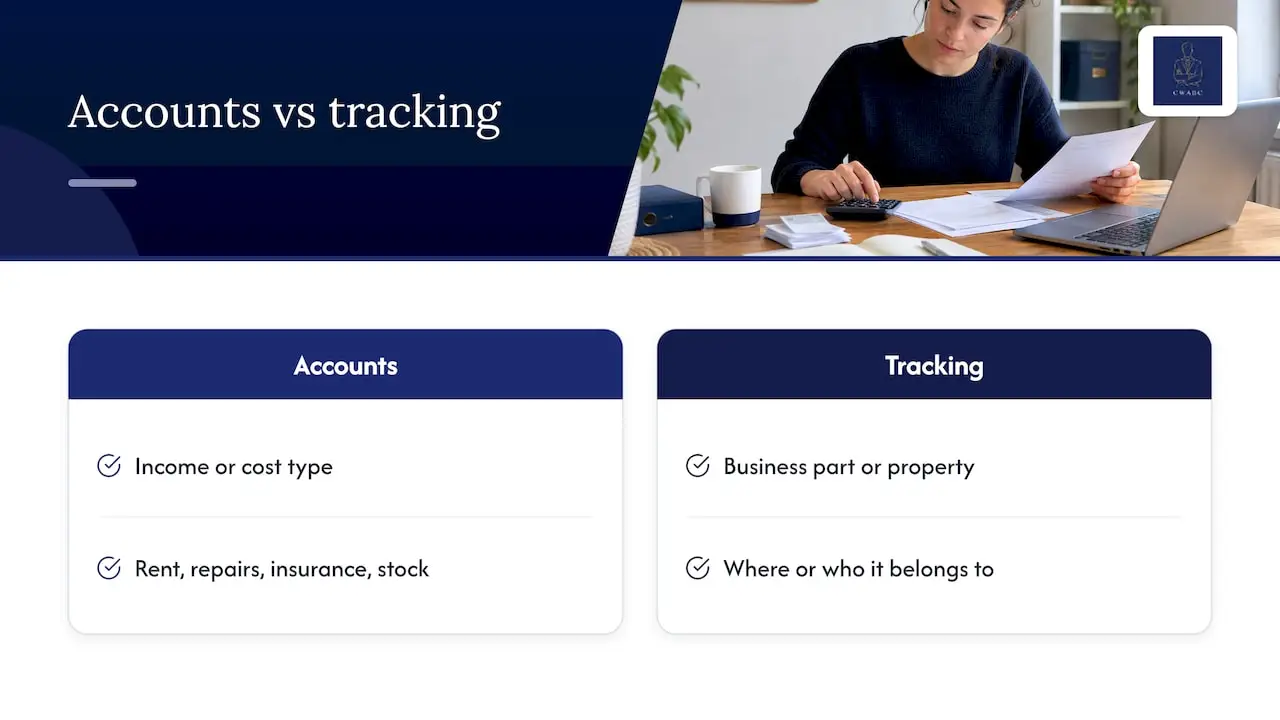
Your chart of accounts says what the money was: rent received, repairs, insurance, stock. Tracking says where or who it belongs to. If you try to answer “which property?” by creating “Repairs – Flat 2”, “Repairs – Flat 3” and so on, your chart balloons and becomes hard to maintain. If you would like a tidy foundation first, my guides on how to set up a Xero chart of accounts properly and keeping it to a manageable number of accounts are a good place to start.
A useful rule: use accounts for the type of income or cost, and tracking for the part of the business it relates to.
Before you set anything up: decide your two questions
Because you only get two active categories, the design step matters more than the clicking. Sit down with a cup of tea and answer these:
- What decisions will I make from these reports? (For example: sell a property, drop a service, hire for one site.)
- What are the two most useful ways to split my numbers?
- Will the options stay stable, or will they multiply every month?
If an option list will grow without limit, such as a new customer every week, tracking is probably the wrong tool. Customer-level reporting is better handled through contacts and standard sales reports.
Good first choices by type of client
- Landlords: Category one is Property. Category two could be Income stream if you have a mix of long lets, holiday lets and commercial units.
- Sole traders with several services: Category one is Activity (for example Training, Consulting, Product sales).
- Limited companies with more than one site: Location and Department.
- Startups testing ideas: Product line or Channel, so you can see what is worth keeping.
How to set up tracking categories in Xero
The steps below describe the usual route. Xero updates its screens from time to time, so if a menu name looks slightly different, search the help centre for “tracking categories” and follow the current layout.
- Log in as a user with advisor or standard access that allows settings changes.
- Open the Accounting menu, choose Advanced, then select Tracking categories.
- Select Add Tracking Category and type a clear name, such as Property or Location.
- Add your options one at a time, using short names you will recognise in a drop-down list.
- Save, then repeat for your second category if you need one.
A few practical tips from setting these up for clients:
- Use names that sort sensibly. “Property 01 – High Street” keeps things in order better than a mix of street names and nicknames.
- Avoid spelling variants. “Flat 2” and “Flat Two” will become two different options.
- Add a catch-all option such as “Shared / general” for costs that cannot be assigned to one place, such as accountancy fees or a landlord insurance policy covering several properties. Otherwise those costs disappear from the comparison and you wonder why the totals do not match.
Limits to remember during setup
You can have two active tracking categories, and each can hold up to 100 options. That is the limit described in a software provider’s Xero integration guide, and the sports-platform guidance says the same thing. Archiving or deleting a category is possible, which frees a slot, but you should think carefully before doing it on a live ledger, because it affects how you can filter historic reports.
Assigning tracking options to transactions
Once the category exists, you tag transactions. The tag sits on each line, not just on the whole document. That is helpful: one supplier bill for £600 can be split across two lines, £400 tagged to one property and £200 to another.
Tracking can be used on a wide range of items. An independent Xero guide lists invoices, bills, purchase orders, spend-money and receive-money transactions, expense-claim receipts, employee groups and timesheets as places where it applies. In day-to-day bookkeeping, the ones you will meet most are:
- Sales invoices: pick the tracking option on each line as you raise the invoice.
- Bills: tag each line when you enter or approve the bill.
- Bank transactions: tag when you reconcile, or when you create a spend-money or receive-money transaction.
- Bank rules: if a payment always relates to one property, such as a monthly mortgage payment, set the rule to apply the tracking option automatically so you do not have to think about it again.
If you use Xero payroll, the same guide explains that payroll tracking needs categories selected in payroll settings and employees assigned to an employee group. That guide was written for another country’s payroll screens, so check how it looks in your own UK payroll set-up before relying on it.
Tagging as part of bank reconciliation
The easiest time to tag is while you reconcile, because you are already looking at each line and deciding what it is. If you are working through a backlog, my guide to finishing Xero bank reconciliation in a day shows a calm routine, and you can add the tracking check as a final pass. When a messy ledger needs sorting first, the bookkeeping clean-up checklist helps you reconcile and flag queries before tagging.
Editing and archiving options
If a property is sold or a site closes, you do not need to delete the option. Archive it so it stops appearing in new drop-downs while the history stays in your reports. If you rename an option, previous transactions follow the new name, which is usually what you want. Deleting is best avoided once there are transactions attached, because you lose the neat link between the label and the figures.
Worked example 1: a landlord with three properties
Let us say a landlord owns three rental properties in Kent. I will use made-up round numbers to show the idea, not a real client.
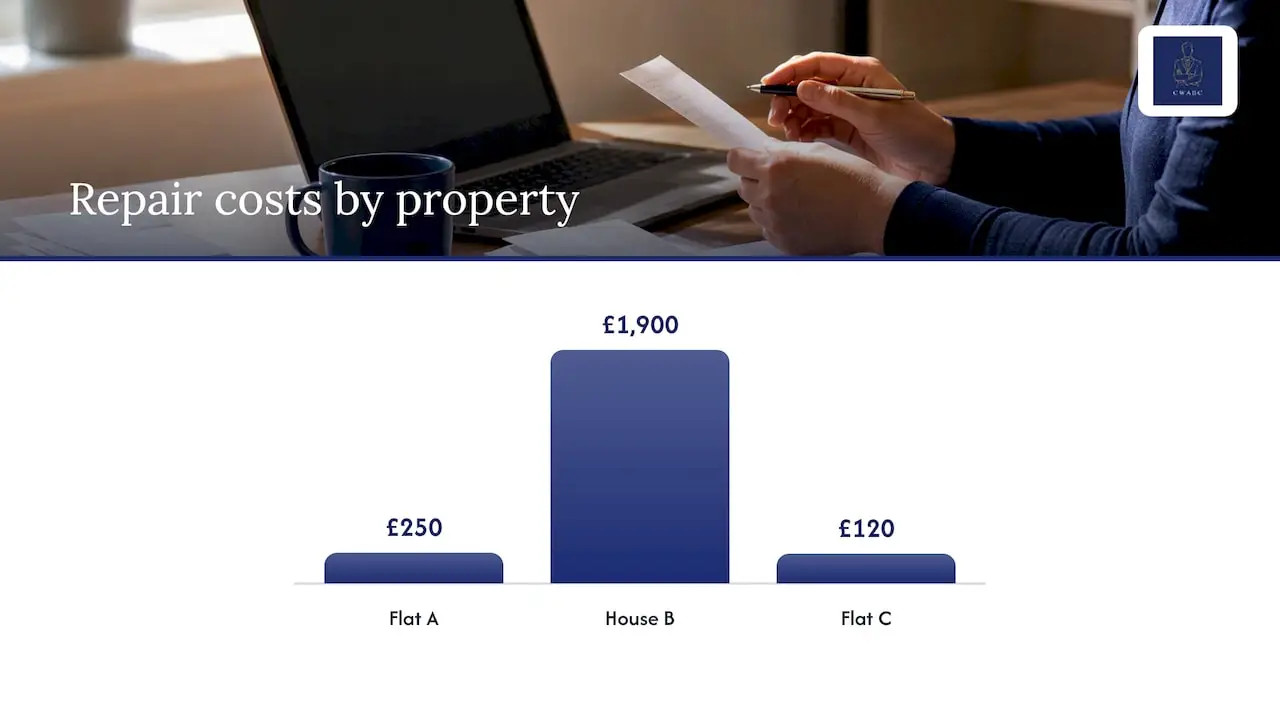
She creates a category called Property with options: Flat A, House B, Flat C, and one catch-all called Shared.
Over a quarter she records:
| Item | Flat A | House B | Flat C | Shared |
|---|---|---|---|---|
| Rent received | £3,600 | £4,500 | £3,300 | £0 |
| Repairs and maintenance | £250 | £1,900 | £120 | £0 |
| Letting agent fees | £288 | £360 | £264 | £0 |
| Insurance | £0 | £0 | £0 | £540 |
| Mortgage interest | £700 | £1,100 | £650 | £0 |
On a single combined profit figure, you would only see the overall result. With tracking, House B immediately stands out: a big repair bill took a large bite out of its quarter. That is useful for planning, for example whether to budget a maintenance reserve for older properties.
Two points are worth keeping in mind:
- Management reporting is not the same as your tax return. Tracking helps you understand each property. How rental income and expenses are reported to HMRC (His Majesty’s Revenue and Customs) depends on your circumstances, including whether you hold properties personally or through a company, and how finance costs are treated. That is a conversation for your own tax adviser or accountant.
- Shared costs need a sensible rule. You might leave them in Shared, or split them equally across the three lines. Choose a method, write it down, and apply it consistently.
If you are a landlord preparing for the digital quarterly updates, clean property-by-property records will make life easier. My guide to the quarterly updates left for sole traders and landlords under Making Tax Digital for Income Tax explains the timetable in plain English.
Worked example 2: a business with different income streams
Now take a small limited company run by one director, selling three things: one-off installations, annual service contracts and spare parts. Again, the figures are illustrative.
He sets up a category called Activity with options Installations, Servicing and Parts, and a second category called Location with options Tonbridge and Sevenoaks.
The monthly Profit & Loss by Activity might look like this:
| Installations | Servicing | Parts | |
|---|---|---|---|
| Sales | £9,000 | £4,200 | £1,500 |
| Direct costs | £6,300 | £1,400 | £1,200 |
| Gross profit | £2,700 | £2,800 | £300 |
| Gross margin | 30% | 67% | 20% |
Installations bring the most turnover, but servicing earns almost as much gross profit for far less cost. That is the kind of insight that changes a pricing or marketing decision. Without tracking, it would be buried in one “Sales” line.
The second category lets him ask a different question on the same data: is the Sevenoaks van earning its keep compared with Tonbridge? You can only cross both categories in some views, so it is worth testing what you need before committing.
Reporting by tracking category
Tagging is only worthwhile if you actually read the reports. The main ones are:
- Profit & Loss: use the option to compare by tracking category, which shows each option as its own column. This is the report most owners find most useful.
- Tracking Summary report: shows activity for each tracking option for a chosen account type over a chosen period, which suits a quick check of income or expenses by option.
- Account Transactions, Journal and Balance Sheet: can be filtered by tracking option, as described in the same independent guide, handy when you need to see the detail behind a number.
- Analytics: Xero’s Analytics add-on lets you filter by tracking category on the Comprehensive, Ultimate and Ultra plans, with dashboard filtering on Ultimate and Ultra. That page is Xero’s Australian version, so check the UK plan names and availability before you upgrade.
A simple monthly routine
- Reconcile the bank accounts.
- Run the Profit & Loss by tracking category for the month.
- Check the “no tracking” column. Anything there needs an option.
- Compare each option against last month and against any budget.
- Write down one action. Even a small one.
If you are a sole trader, the same habit pairs well with a simple profit and loss report, and if you want to compare against targets, budgeting and forecasting support builds on exactly this data.
Tracking categories or Projects?
This is a common question, and the honest answer is that they do different jobs.
| Tracking categories | Projects | |
|---|---|---|
| Best for | Ongoing analysis by property, location, department or activity | Individual jobs with a start, an end and a budget |
| Option list | Stable, up to 100 per category | Grows with each new job |
| Extras | Reporting filters and comparisons | Time logging, budgets, profitability dashboard |
| Typical user | Landlord, multi-site business | Contractor, agency, tradesperson quoting jobs |
Xero UK says Projects lets you assign bills, spend-money transactions and expense claims to a project, compare actual costs with budgets and log time. It also offers a profitability dashboard and dedicated project reports. Use it when each job is its own mini-business.
A rule of thumb I use: if the thing you are measuring will still exist next year, such as a property or a site, use tracking. If it ends when the job is done, consider Projects. Many businesses sensibly use both: tracking for the stable structure, Projects for jobs.
Whether Projects is included depends on your Xero plan, so check the current plan details on Xero’s own pages before choosing.
The limits and common mistakes
Tracking categories are helpful, not magic. These are the issues I see most often:
- Only two active categories. If you want four ways to slice data, you have to choose or combine them. Combining two ideas into one long list works for small lists but gets unwieldy quickly.
- Untagged transactions. One missed tag makes a column look healthier than it is. Check the “no tracking” figure every month.
- Inconsistent options. Duplicates and spelling differences quietly break reports.
- Tracking used as a chart-of-accounts replacement. Keep accounts for the nature of the cost.
- Changing the structure mid-year. Reshaping categories means re-tagging history, or accepting that early months are not comparable.
- Overlooking balance sheet items. Tracking works best on income and expenses. Loans, VAT and other balance sheet movements do not split neatly by property or site.
- Shared costs ignored. Decide the allocation rule and stick to it.
- Expecting it to fix tax compliance. Tracking is management information. Your tax return, VAT return or company accounts still need correct figures, correct treatment and the right supporting records.
Bear in mind that VAT is not allocated by tracking category in any special way: a VAT return covers the whole VAT-registered business. If you are registered, make sure your VAT codes are correct first. My overview of what a VAT return involves covers the basics.
My perspective: keep it simple, then make it useful
I am a sole practitioner, and most of the Xero files I see are not complicated. They are just a bit untidy. The most common pattern is a landlord or small business owner who knows roughly what they earn overall but cannot say which part is carrying the rest.
My approach is to start with a conversation, not a screen. I ask what you want to know and what you would do differently if you knew it. Often that leads to one category, not two. A landlord with three properties rarely needs more than Property. A business with a couple of services may only need Activity. Starting small makes the habit stick, and you can add the second category later, once the first is working.
I also like to build tracking into your routine rather than leave it as a one-off project: bank rules that tag automatically, a short monthly check for untagged lines, and a simple report you can read in five minutes. Done that way, tracking categories take the stress out of the numbers instead of adding to it.
And a note of caution I give everyone: reports by property or activity help you manage, but your tax position depends on your own facts. I explain what the numbers mean in plain English, and I will not promise a particular outcome.
— Chris
How I can help you set this up
If you would rather not work out the design alone, I can help you decide what to track, configure the categories and options in Xero, set up bank rules, and build a monthly report you can actually use. I work with landlords, sole traders, limited companies and CICs in Tonbridge, Sevenoaks and across Kent, and remotely throughout the UK.
There are a few ways in, depending on where you are:
- Starting from scratch or switching software: my accounting software setup and training helps you get Xero organised from day one. If you are leaving spreadsheets, moving from Excel to cloud accounting explains the steps.
- Ongoing records: bookkeeping services keep your ledger reconciled and tagged, so your reports are ready when you need them.
- Not sure which software suits you: Xero compared with FreeAgent and QuickBooks sets out the differences plainly.
My pricing is agreed clearly upfront and tailored to what you need.
FAQ
How many tracking categories can you have in Xero?
You can have two active tracking categories, each with up to 100 options, according to published Xero integration guidance. If you need to change one, archive an existing category to free up a slot. Plan your design first, because changing it later usually means re-tagging earlier transactions.
What is the difference between tracking categories and Projects in Xero?
Tracking categories analyse ongoing areas of the business, such as properties, sites or departments. Projects is designed for individual jobs, with budgets, time logging and profitability reporting. Use tracking for stable structures and Projects for work that has a start and finish.
Can I add tracking categories to transactions I have already entered?
Generally yes. You can open the transaction and add a tracking option to each line, or edit in bulk where Xero allows it. For a large backlog, work month by month and check the “no tracking” column in Profit & Loss afterwards. If the volume is big, ask your bookkeeper to do it as part of a clean-up.
Do tracking categories affect my tax return?
No, they are a management reporting tool. Your tax return, VAT return or company accounts still rely on correct accounting entries and supporting records. Tracking can make it easier to see property-by-property or activity-by-activity results, but it does not change what is taxable.
Need help?
If you would like tracking categories set up properly in Xero, or you want clearer reports for your rental properties or business activities, I would be happy to talk it through. Get in touch with me here and tell me a little about your situation.
Sources
- Xero – Setting up Tracking Codes (MyTrucking Help Center)
- Set up tracking categories for Xero (Sporty Online Support)
- Xero How To: Setting up your Tracking Categories (HTA)
- Analytics pricing plans (Xero Central)
- Project Tracking Software for UK Small Business (Xero UK)