
Opening balances in Xero (Xero calls them conversion balances) are the figures your business starts with on the day you begin using the software. Get them right and every report from then on is built on solid ground. Get them wrong and you will chase small differences for months. The good news is that the job is simple when you do it in the right order, and you can do it calmly.
This guide walks through it in plain English: choosing your start date, pulling the right figures from your old system, entering bank balances, invoices and bills, VAT, loans, fixed assets and retained earnings, then checking it all and avoiding duplicated transactions.
TL;DR
- Choose a conversion date that is the first day of a month, and run a trial balance from your old system for the day before.
- Add your bank and credit card accounts first, then enter conversion balances, then outstanding invoices and bills one by one so they can be paid off properly.
- Never enter the same item twice: anything dated before the conversion date comes in as a balance, anything after comes in as a normal transaction.
- Check the result against your old trial balance and your bank statements before you carry on bookkeeping.
- If it feels like too much, I can migrate your records and check the opening balances for you.
Table of Contents
- What opening balances in Xero actually are
- Choose your conversion date
- Before you enter anything: gather your figures
- Tidy your chart of accounts first
- Step by step: entering conversion balances
- VAT on opening balances
- Loans, hire purchase and director’s loan accounts
- Fixed assets
- Retained earnings and equity
- How to avoid duplicated transactions
- Reconciliation checklist
- How to correct an opening balance that is wrong
- Common mistakes to avoid
- My view: do it once and do it properly
- How I can help you move to Xero
- FAQ
- Need help?
- Sources
What opening balances in Xero actually are
When you move to Xero from spreadsheets, paper records or another package, Xero needs to know where you stood on your first day. Those starting figures are your conversion balances. They cover things like what is in the bank, what customers owe you, what you owe suppliers, any loans, your fixed assets and the profit you have built up in earlier years.
Think of it as handing Xero a snapshot of the business on one date. From that point, everything you record in Xero adds to or subtracts from the snapshot.
Two terms are worth separating:
- Conversion balances are the balances on your start date. Xero needs these for the system to work.
- Comparative balances are optional earlier figures that let you compare reports with previous periods. Xero warns that comparative balances must be fully set up in Conversion Balances for the reports using them to be correct, so if you cannot do them properly, leave them out.
Choose your conversion date
The conversion date is the date you start recording business transactions in Xero, and Xero says it is always the first day of a month. That gives you a clean choice in practice. Here is how I usually think about it for UK clients:
- Start of your financial year. Often the neatest. Your opening balances are the closing balances of the last year, and your year-end accounts and tax return line up with Xero from day one.
- Start of a VAT quarter. Useful if you are VAT registered, because your VAT return period then sits entirely in Xero.
- Start of a month after your last accounts were finished. Sensible if you are a new Xero user part way through the year and your previous bookkeeping has been reconciled up to that point.
The golden rule: pick a date for which you have reliable closing figures. If last year’s accounts are not finished, it is often better to wait, or to start from the last date that is solid, rather than build on guesses.
If you are a sole trader, my guide to setting up a sole trader bookkeeping system covers the wider setup. If you are a new business with no history, you may not need conversion balances at all, and setting up an accounting system for a new business is a better starting point.
Before you enter anything: gather your figures
This is the stage that saves the most stress. Before you open Xero’s conversion screen, collect:
- A trial balance from your old system. Xero recommends running a trial balance report in the previous system for the day before your conversion date. A trial balance is simply a list of every account and its balance, with debits and credits that add up to the same total.
- Bank and credit card statements showing the balance on the day before conversion.
- A list of unpaid sales invoices (what customers owe you) with invoice number, date, customer and amount.
- A list of unpaid bills (what you owe suppliers) with the same details.
- VAT figures, if registered: your last submitted return and any VAT owed or due back.
- Loan statements, hire purchase or finance agreements, and director or owner loan balances.
- A fixed asset register: what you own, what it cost, when you bought it and the depreciation to date.
- Last year’s finalised accounts, so retained earnings agree.
If you are coming from Excel, the steps are very similar, and my article on moving from Excel to cloud accounting shows how to turn a spreadsheet into something Xero can use.
Tidy your chart of accounts first
Your opening balances land in accounts, so the accounts need to exist and make sense. Xero gives you a default chart of accounts, and you can edit it. Match each line on your old trial balance to an account in Xero before you enter figures, and add accounts you need (for example a specific loan account).
Keep it lean. Too many accounts makes reports harder to read and mistakes easier to make. I explain my approach in how to keep your Xero chart of accounts to a manageable size.
Step by step: entering conversion balances
In Xero, you will find the screen under the Accounting menu, within Accounting settings or Advanced, depending on your layout, as Conversion balances. Xero’s own page describes the process in its guide to converting to Xero from another accounting system. Here is the order I follow.
1. Set the conversion date
Enter your first-of-the-month date in the organisation settings. Do this before anything else, because Xero then treats earlier dates differently.
2. Add your bank and credit card accounts
Xero says to add the business bank or credit card accounts before entering conversion balances. Once they are added, you can enter the opening balance for each.
Use the balance per the bank statement on the day before the conversion date, or per your reconciled old records. If they differ because of unpresented cheques or payments in transit, I handle those through the outstanding invoices and bills rather than by adjusting the bank figure. Bank balances should reflect reality.
3. Enter the trial balance figures
Go through the trial balance line by line. For each Xero account, enter the debit or credit balance from your old system. Pay attention to the sign: money you hold in the bank is a debit, a loan you owe is a credit. Xero will show a running total and will tell you if debits and credits do not match.
Do not enter these accounts here, as they are dealt with separately:
- Accounts receivable (debtors): these come in as individual invoices.
- Accounts payable (creditors): these come in as individual bills.
- Bank accounts: entered as the bank balance in the step above.
You can type the balances in manually or prepare a spreadsheet and import it, which is faster if you have many accounts.
4. Add outstanding sales invoices
Create each unpaid customer invoice as a normal sales invoice, dated with its original date, which will be before the conversion date. Xero then treats these as part of your opening position, and they reduce the receivables balance as customers pay.
This matters. When the customer pays, you record the payment against the invoice and match it to the bank line. If you had entered a lump sum instead, you could never match individual payments and your debtors list would be wrong.
5. Add outstanding bills
Same idea for suppliers: enter each unpaid bill with its original date and amount. Suppliers’ payments then match to real bills.
6. Check the totals agree
Once invoices and bills are in, your receivables and payables in Xero should match the totals on your old trial balance to the penny. If they do not, find out why before you move on. Common causes are credit notes you forgot, part payments, or invoices that were paid on the last day.
VAT on opening balances
VAT is where I see most migration mistakes, so go slowly here.
If you are VAT registered, the main questions are:
- Which VAT return does the conversion date fall in? Ideally you convert at the start of a VAT period, so a whole return sits in Xero.
- Do your outstanding invoices and bills carry the right VAT rate? Unpaid invoices dated before the conversion date were already reported on an earlier return if you use standard accounting, or will be reported when paid if you use cash accounting. Check which scheme you use before choosing tax rates on opening items, otherwise VAT can be counted twice or missed.
- Is there a VAT balance owed or refundable? The amount due to or from HMRC at the conversion date belongs in your VAT liability account, and should agree to what your last return and payments show.
UK VAT-registered businesses must also keep records digitally. The VAT (Amendment) Regulations 2018, in force from 1 April 2019 for the specified periods, require covered taxpayers to keep an electronic account using functional compatible software. Those records include supply times and values, VAT rates or allowable input tax, and VAT adjustments or corrections. In practice, that means your opening VAT position and any corrections should be traceable in your software, not held in a side spreadsheet. If you are not sure how this applies to your business, my small business guide to the VAT return is a good place to start, and I can review your position with you through my VAT returns service.
If you are not VAT registered, use a no-VAT tax rate on opening items and make sure you are not accidentally creating VAT liabilities.
Loans, hire purchase and director’s loan accounts
Loans are balances rather than transactions, so they go in as conversion balances:
- Bank loans and hire purchase: enter the outstanding capital balance on the conversion date, as shown on the lender’s statement, to the loan liability account. Do not include interest that has not yet accrued.
- Director’s loan account (limited companies): enter the balance as shown in your last set of accounts. A credit means the company owes the director. A debit means the director owes the company, which can have tax consequences that are worth reviewing with an accountant.
- Owner’s drawings and capital (sole traders and partnerships): these are equity items. Sole traders typically start the new period with the capital account carrying forward and drawings reset to zero.
From then on, record each repayment as a transaction. Many people get stuck splitting loan repayments between capital and interest. Use the lender’s statement to work out the interest and post it to an interest expense account, with the rest reducing the loan.
Fixed assets
Fixed assets such as vehicles, equipment and computers need their cost and the depreciation to date brought across. A tidy method is:
- Enter the cost of each asset class as a conversion balance in the relevant fixed asset account.
- Enter the accumulated depreciation as a separate conversion balance in the depreciation account.
- If you use Xero’s fixed assets register, set the asset start date to the conversion date for assets you already own. Xero’s import template requires an asset name and a unique asset number for each item. That guide is written for another region’s version of Xero, so follow the same logic but use the labels you see in your own UK screens.
If you are a sole trader or landlord who claims capital allowances instead of depreciation, keep a note of the pool balances from your last tax return. Your accounting figures and your tax figures can legitimately differ, and it helps to keep both visible.
Note that Xero says fixed assets, bank accounts, accounts receivable and accounts payable cannot be recoded using Find and Recode. So an error in these areas cannot be fixed with a quick bulk recode. Another reason to get them right first time.
Retained earnings and equity
Retained earnings are the accumulated profits of past years, less any dividends paid. In a limited company, this sits in equity. Your old trial balance will show it, usually as retained earnings or profit and loss reserve.
In Xero, you generally do not type retained earnings separately as a mystery number. Xero works out the balance from the other conversion balances you enter, so profit and loss account balances from earlier years roll into it. This is why a correct trial balance matters so much: if everything else is right, retained earnings falls into place. If your retained earnings in Xero differ from your last finalised accounts, something earlier in the process is wrong, and the answer is almost never to force the figure.
If you are mid-year, remember that profit and loss accounts in your trial balance cover the year to the conversion date. Enter these carefully so your year-to-date figures are not lost.
How to avoid duplicated transactions
Duplicates are the most common problem I see after a migration. They usually come from overlap between old and new records. To avoid them:
- Draw a hard line. Everything dated before the conversion date lives in the opening balances. Everything from the conversion date onward lives in Xero as transactions.
- Import bank statements from the conversion date only. If you import earlier lines, they will show up as unreconciled items that duplicate invoices and balances already entered.
- Do not enter paid invoices from before the conversion date. Only unpaid ones are needed. Paid ones are already inside the opening balances.
- Do not re-enter payments that cleared before the conversion date against opening invoices. Only payments made on or after the start date get recorded.
- Do not use a bank feed and a manual statement upload for the same period. Choose one.
- Beware of invoices raised in both systems. If you ran two systems side by side for a while, mark one as the source of truth and clear the other.
- Watch your sales platforms. If an online marketplace or payment processor feeds Xero, make sure its sales are not also entered by hand.
If duplicates do slip in, use the Bank reconciliation screen to spot items that look the same, and delete or exclude the extra rather than matching both.
Reconciliation checklist
When the opening balances are in, check them before relying on them. This is the checklist I work through.
- [ ] The conversion date is the first day of a month.
- [ ] Debits equal credits in the conversion balances.
- [ ] The Xero trial balance at the conversion date matches the old system’s trial balance for the day before, account by account.
- [ ] Each bank and credit card account’s opening balance agrees to the statement.
- [ ] Receivables in Xero equal the total of the unpaid sales invoice list.
- [ ] Payables in Xero equal the total of the unpaid supplier bill list.
- [ ] VAT liability agrees to your last return and payments, and tax rates on opening items suit your VAT scheme.
- [ ] Loan balances agree to lender statements.
- [ ] Fixed asset cost and depreciation agree to the asset register.
- [ ] Retained earnings agree to your last finalised accounts.
- [ ] The first bank reconciliation is complete, with no duplicates and no unexplained differences.
For the bank reconciliation itself, Xero’s guidance is to enter opening and closing statement balances, compare them with Xero’s payments and deposits, and investigate any difference. If you want a quicker routine, see my article on finishing a Xero bank reconciliation efficiently. Sole traders may prefer this walkthrough for reconciling a sole trader bank account.
How to correct an opening balance that is wrong
Don’t panic. This is common, and it is fixable. Start by working out which part is wrong.
If the bank opening balance is out, compare the transactions Xero lists with the bank statement. Xero’s guidance lists the options: include or exclude transactions, remove and redo account transactions, delete statement lines, unreconcile transactions, or add missing transactions or statement lines. Often the cause is a statement line imported twice or a payment before the conversion date that should not be there.
If receivables or payables are out, compare Xero’s aged lists with your original lists. Look for missing credit notes, invoices entered twice, or part payments not recorded.
If the trial balance does not agree to the old one, change the conversion balance for the account that differs, rather than posting a journal to cover it up. A journal that hides a difference will come back to haunt you at year end.
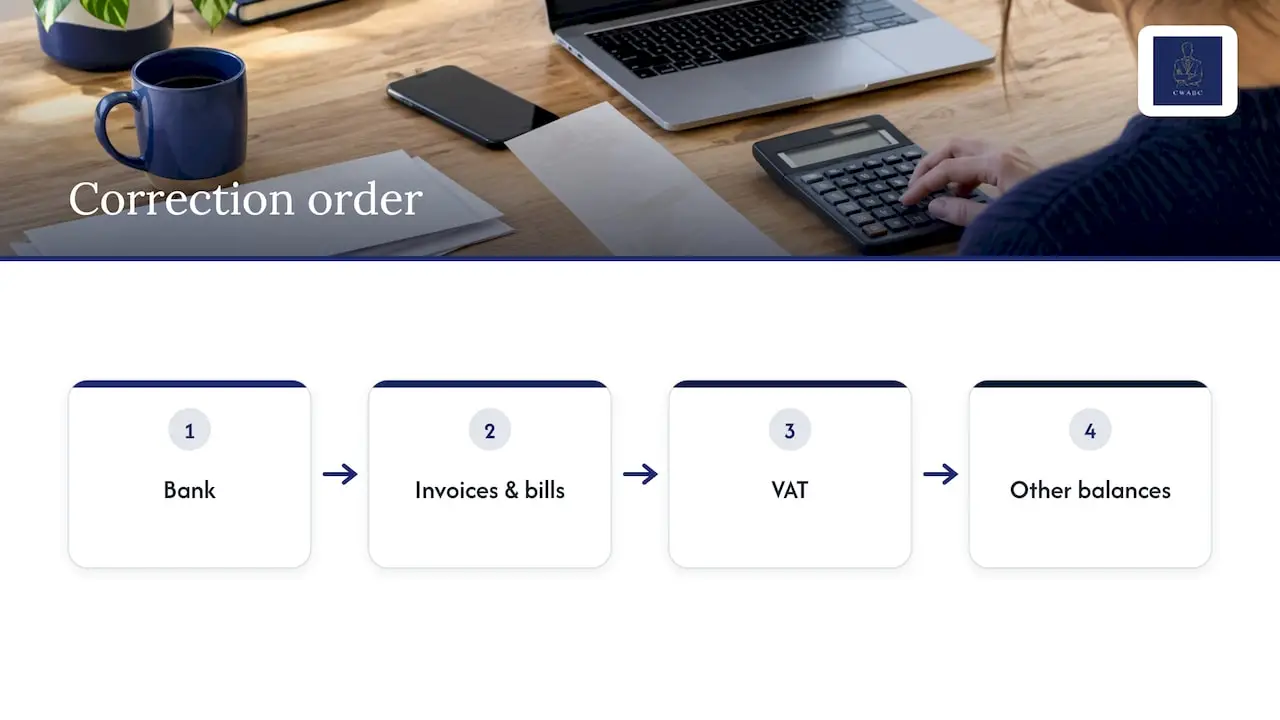
Work in this order: bank first, then invoices and bills, then VAT, then everything else. Fixing one layer often clears errors in the next. If you have been in Xero for a while and the difference is stubborn, my bookkeeping clean-up checklist explains how I reconcile first and flag queries second.
For more on getting the structure right at the start, see my article on day one opening balances.
Common mistakes to avoid
- Picking a date mid-month. It must be the first of a month.
- Entering debtors and creditors as one lump. You lose the ability to match payments.
- Using the wrong bank balance. Use the statement balance on the day before conversion.
- Ignoring VAT rates on opening invoices. Check your scheme first.
- Forgetting credit notes and part payments.
- Forcing retained earnings to agree. Find the cause instead.
- Starting bookkeeping before checking. An hour of checking now saves days later.
Good records also protect you with HMRC. I explain why in accurate bookkeeping and how it saves tax, and why preparation through the year helps in year-round tax preparation tips.
My view: do it once and do it properly
I have seen the same pattern many times in how small businesses approach software migration: people treat opening balances as a form-filling exercise, push through to get to the “real” bookkeeping, and then spend far longer fixing it than it would have taken to check at the start. My advice is to slow down for this one stage.
I would rather spend time agreeing three things before anything else: the trial balance, the bank statements and the lists of unpaid invoices and bills. If those three agree, the rest of the setup is mostly mechanical. If they do not, no software setting will make up for it.
I also think you should not be embarrassed about asking for help here. Opening balances sit at the point where bookkeeping and accounting meet, and a small misunderstanding, such as a VAT scheme or a director’s loan, can ripple through your year-end accounts and tax return. A short check by someone who does this regularly is cheap compared with the cost of unpicking it later.
My aim is for you to finish the migration knowing your numbers, rather than hoping they are right.
— Chris
How I can help you move to Xero
If you would rather not do this alone, I can help you personally from start to finish. As a sole practitioner, you deal with me directly throughout. Depending on your situation, I can:
- agree a sensible conversion date with you;
- review your old trial balance and prepare the opening balances;
- enter outstanding invoices and bills, bank balances, loans, fixed assets and VAT positions;
- check that everything agrees and complete your first bank reconciliation;
- set up your chart of accounts and bank feeds, and train you to use Xero with confidence; and
- take on your ongoing bookkeeping, VAT returns, Self Assessment, accounts and Making Tax Digital support.
You can read more about my accounting software setup and training, my bookkeeping services and my Self Assessment service, which starts from £250 one-off. Pricing for other work is agreed clearly upfront and depends on the scope, so I will talk it through with you first. I work with clients in Tonbridge, Sevenoaks and across Kent, and remotely throughout the UK.
FAQ
What is the journal entry for an opening balance in Xero?
In most cases you do not need a manual journal. Conversion balances are entered on the Conversion balances screen, and Xero posts the double entry for you. A manual journal is better kept for later adjustments, because journals dated before the conversion date can disturb your opening position.
How do I correct the difference in an opening balance?
First find out which area is out: the bank, receivables, payables or another account. For the bank, compare Xero’s list of transactions with your statement and add, remove or unreconcile items until it agrees. For other accounts, correct the conversion balance itself rather than covering it with a journal.
Can I change my conversion date once I have started?
Yes, but it needs care, because changing it can affect every balance and transaction around it. Xero’s own guidance sets out the process, and I would recommend a review before you change it if you have already reconciled several months. Where a lot of work is involved, it is often safer to ask an accountant to do it with you.
Do I need opening balances if my business is brand new?
Usually not. If you have not traded yet, there is nothing to convert. You may only need to record what you put into the business, such as owner’s capital, and any start-up loan. Setting up the accounts sensibly on day one is the main job.
Should I enter opening balances myself or ask an accountant?
If you have a simple business with a few unpaid invoices, a clear trial balance and no VAT, you can usually do it yourself using the checklist above. If you have VAT, loans, fixed assets, payroll or several years of history, having it done and checked is worth considering. That is where I can help.
Need help?
If you are moving to Xero and want your opening balances checked or set up properly, I would be glad to help. Get in touch through my contact page and tell me a little about your business, and I will explain how I can support you.
Sources
- Convert to Xero from another accounting system, Xero Central
- Reconcile and close a period, Xero Central
- Common issues for find and recode, Xero Central
- Owners’ Equity Summary, Xero Central
- Import fixed assets, Xero Central
- The Value Added Tax (Amendment) Regulations 2018, legislation.gov.uk