
Bank reconciliation in Xero means matching every line on your bank statement against the transactions already sitting in Xero, either accepting a suggested match or creating a new transaction on the spot. The immediate step is simple: open the Reconcile tab, check your bank feed or imported statement is up to date, and start working through the list. Do this regularly and your bank balance in Xero will always match reality.
TL;DR:
- Regularly reconciling multiple bank accounts in Xero is essential, especially for high transaction volumes, which requires setting fixed schedules and automation tools.
- Ensuring the opening balances are correct before reconciliation prevents errors that could cause mismatches throughout the process.
- Bank rules and cash coding significantly reduce manual work by automatically categorizing recurring transactions and batch coding similar lines.
- Discrepancies often stem from timing differences, unrecorded fees, or incorrect transaction details, and should be investigated systematically to maintain accuracy.
- Report comparison through the Bank Reconciliation Summary and detailed account transactions helps verify the accuracy of your reconciliation and supports tax compliance.
Table of Contents
- What to prepare before you reconcile
- How do you reconcile a bank account in Xero?
- Bank feeds, bank rules and cash coding: where automation actually helps
- Why won’t my Xero bank account reconcile?
- Which reports confirm your reconciliation is correct?
- How often should you reconcile your Xero bank account?
- Practical tips from CWABC: speeding up reconciliation without cutting corners
- When does hiring a bookkeeper make reconciliation simpler?
- Hubdoc vs Dext: which suits your reconciliation workflow?
- Where CWABC fits into your Xero reconciliation routine
- Need help?
- Sources
What to prepare before you reconcile
Before you touch the Reconcile tab, get three things right. Skip this stage and you will spend far longer untangling mismatches than you saved by rushing in.
First, check your opening balance in Xero matches the actual opening balance on your bank statement for the period you’re reconciling. Xero flags this at the top of the Reconcile screen, but it’s worth checking manually the first time you set up a new bank account, since an incorrect opening balance throws every later reconciliation out.
Second, make sure your bank feed is connected and pulling through automatically, or that you’ve imported a statement file (usually a CSV or OFX) if your bank doesn’t support direct feeds. Xero itself recommends preparing before you reconcile by confirming your feed is current and your opening balance is correct before starting.
Third, enter any outstanding transactions, invoices, bills, expense claims, and manual cash entries, so Xero has something to match statement lines against. If you’re still working from spreadsheets rather than a live feed, it’s worth reading about moving from Excel to cloud accounting before you go further.
Checklist to run through first:
- Confirm the opening balance in Xero matches your bank statement
- Verify the bank feed is connected or import your latest statement file
- Enter unrecorded invoices, bills, and expense claims
- Note any pending direct debits or standing orders not yet on the statement
How do you reconcile a bank account in Xero?
Xero’s own guidance describes bank reconciliation as matching each bank statement line to an existing Xero transaction or creating a new one during the process. Here’s how that plays out on screen.
- Go to Accounting → Bank accounts → Reconcile. You’ll see a split screen: statement lines from your bank feed on the left, and Xero’s suggested matches or transaction entry options on the right.
- Review each statement line. Xero compares the date, amount, and payee against transactions already in your ledger and offers a suggested match where it’s confident.
- Accept suggested matches when the amount, date, and contact all line up correctly. Don’t accept blindly. A £45.00 payment to “J Smith” might match an invoice for a completely different job if you have more than one client with a similar name.
- Use Find & match for anything that isn’t a straightforward one-to-one match, a single payment covering two invoices, or a lump sum that needs splitting across several bills. This opens a search panel where you can tick multiple items to group against one statement line.
- Create a new transaction directly from the statement line if nothing in Xero matches it yet, useful for one-off expenses or income you haven’t invoiced.
- Create cash transactions for cash withdrawals, petty cash top-ups, or personal drawings that never generate an invoice or bill, coding them straight from the reconciliation screen without leaving it.
- Use Remove & Redo if you accept a match in error. This unlinks the transaction and statement line without deleting either, so you can rematch it correctly.
Pro Tip: Work through statement lines oldest first. Xero’s suggested matches get noticeably more accurate once you’ve reconciled a few weeks, because it learns from your matching patterns over time.
Bank feeds, bank rules and cash coding: where automation actually helps
Open banking feeds pull transactions into Xero automatically, usually overnight, and Xero suggests matches based on prior reconciliation behaviour. Checking a daily feed rather than letting a month build up means you catch errors while the transaction is still fresh in your memory, and while you can still ring the bank if something looks wrong.
Bank rules take this further by automatically coding recurring transactions, a monthly software subscription, a regular supplier payment, a standing order to a landlord. Set a rule once and Xero applies it every time that pattern appears, cutting manual coding to almost nothing for predictable spend. The caveat: a poorly written rule can misfire on a similarly named payee, so review rule-matched transactions occasionally rather than assuming they’re always correct.
For genuinely high transaction volumes, the cash coding screen offers a spreadsheet-style view where you can code and reconcile dozens of similar lines at once, rather than clicking through the standard Reconcile tab one by one. It’s a pragmatic shortcut at month-end when you’re facing a long backlog of near-identical entries, though it isn’t designed for one-off or complex matches. Xero’s own guidance on what bank reconciliation involves notes that cash coding suits bulk, repetitive work rather than nuanced matching. If your firm runs bank feeds alongside a broader accounting workflow automation setup, cash coding tends to sit well alongside it.
Why won’t my Xero bank account reconcile?
Unreconciled lines almost always trace back to one of five causes: timing differences (a payment shows on your statement before it clears in Xero, or vice versa), unrecorded bank fees, a bounced payment reversed by the bank, a duplicate entry from manual and feed data overlapping, or a transaction posted with the wrong date or code.
Investigate methodically rather than guessing. Search for the transaction by amount and date range, check whether an invoice or receipt exists that hasn’t been entered, and compare against your paper or digital statement history for that period.
Automated bank feeds and matching can cut manual reconciliation work by up to 75%, which is exactly why unresolved discrepancies stand out so clearly once you’re used to the automation doing most of the heavy lifting.
Practical fixes:
- Create the missing transaction if it genuinely hasn’t been entered yet
- Correct the date or nominal code on a wrongly posted entry
- Delete or merge duplicate entries showing twice from feed and manual import
- Use Remove & Redo to unpick an incorrect match and start again
- Contact your bank directly if a transaction on your statement doesn’t match anything you recognise
For a deeper look at avoiding these problems altogether, see this guide on avoiding common bookkeeping errors.
Which reports confirm your reconciliation is correct?
Two reports do most of the work here. The Bank Reconciliation Summary compares your Xero bank balance against your actual bank statement balance at a chosen date, flagging any difference immediately. Account transactions gives you the full detail behind that balance, every line, matched or not, so you can trace exactly where a discrepancy sits.
- Run the Bank Reconciliation Summary at month-end to confirm Xero and your bank statement agree
- Use Account transactions to drill into any unexplained variance
- Export and retain both reports as evidence for HMRC or Making Tax Digital purposes
Gov makes clear that accurate, retained accounting records support your MTD obligations, so keeping these exports isn’t just tidy practice, it’s part of meeting your statutory duty.
How often should you reconcile your Xero bank account?
Reconcile daily or weekly if you process a high volume of transactions; monthly is the minimum for most smaller businesses. Xero’s own guidance backs this up, recommending weekly or daily reconciliation for higher volumes and at least monthly otherwise, specifically to catch errors while the transaction is still recent enough to investigate easily.
- Set a fixed day and time each week for reconciliation, treat it like any other recurring task
- Build bank rules for recurring payments so routine coding takes seconds, not minutes
- Keep receipts and supplier statements organised digitally so Find & match has something reliable to work against
- If more than one person touches the books, use Xero’s multi-user access to allow a second reviewer to spot-check entries
Regular reconciliation also feeds directly into good habits elsewhere. If you haven’t looked at the benefits of monthly bookkeeping reviews, it’s worth pairing that routine with your reconciliation schedule.
Practical tips from CWABC: speeding up reconciliation without cutting corners
I use the standard Reconcile screen for anything under roughly 30 lines a day, it’s fast enough and keeps you looking at each transaction properly. Once volumes climb past that, cash coding earns its place, particularly for retail or hospitality clients with dozens of near-identical card payments each day.
Receipt organisation matters more than most business owners expect. Find & match relies on dates and amounts lining up cleanly, so if a client’s receipts and supplier statements are scattered across email, paper, and three different apps, matching slows to a crawl. A tidy digital capture habit fixes this before it becomes a problem.
Pro Tip: If you’re regularly spending more than an hour a week untangling mismatches, that’s usually a sign your bank rules need reviewing, not that you need to work faster.
When does hiring a bookkeeper make reconciliation simpler?
Rising transaction volume, multiple bank accounts, or reconciliations that keep slipping past month-end are the clearest signs it’s time to bring in help. I work with clients to set up bank feeds, write sensible bank rules, and build a routine review that catches problems early rather than at year-end panic.
If any of that sounds familiar, my checklist for when to hire an accountant walks through the signs in more detail, and you can get in touch here if you’d like a hand.
— Chris
Hubdoc vs Dext: which suits your reconciliation workflow?
Both Hubdoc and Dext capture receipts and bills, extract the data, and push it into your accounting software, but they’re built differently and that affects which one suits a given business.
Hubdoc, owned by Xero, captures documents via email forwarding, mobile app, or scanner upload, then extracts supplier name, date, and amount before publishing directly into Xero, QuickBooks, or as a standalone tool. It’s included free with most Xero Established plans, which makes it the obvious starting point if you’re already on Xero and only need straightforward capture and supplier rules rather than deeper automation. Storage is unlimited within the platform, and mobile capture is solid for on-the-go receipt photos.
Dext (formerly Receipt Bank) offers more granular data extraction, line-item detail on bills, mileage tracking, and supplier rule automation, and integrates with a wider range of accounting systems including Xero, QuickBooks, FreeAgent, and Sage. It’s a paid product in its own right, with UK pricing tiered by user count and document volume, so it suits practices and businesses that need multi-client access, deeper reporting, or integrations beyond Xero. Where Hubdoc is a bundled convenience, Dext behaves more like a dedicated capture platform with its own subscription and feature roadmap.
Neither is universally better. If you’re a Xero-only sole trader with modest receipt volume, Hubdoc’s inclusion in your existing subscription is hard to beat on cost. If you run a bookkeeping practice managing several clients across different accounting systems, or you need line-item extraction and mileage tracking, Dext’s broader integrations and reporting depth tend to earn their subscription fee. Transaction volume and the level of automation you actually need should drive the decision, not brand loyalty. One useful distinction worth bearing in mind: capture tools like these suit receipts and bills, while bank statements themselves are better handled through dedicated conversion or review before import, since neither Hubdoc nor Dext is designed to replace the Reconcile tab itself.
I’ve worked with both tools across different client setups and can help establish whichever workflow, capture, bank rules, and reconciliation routine, suits your transaction volume and accounting system best.

Where CWABC fits into your Xero reconciliation routine
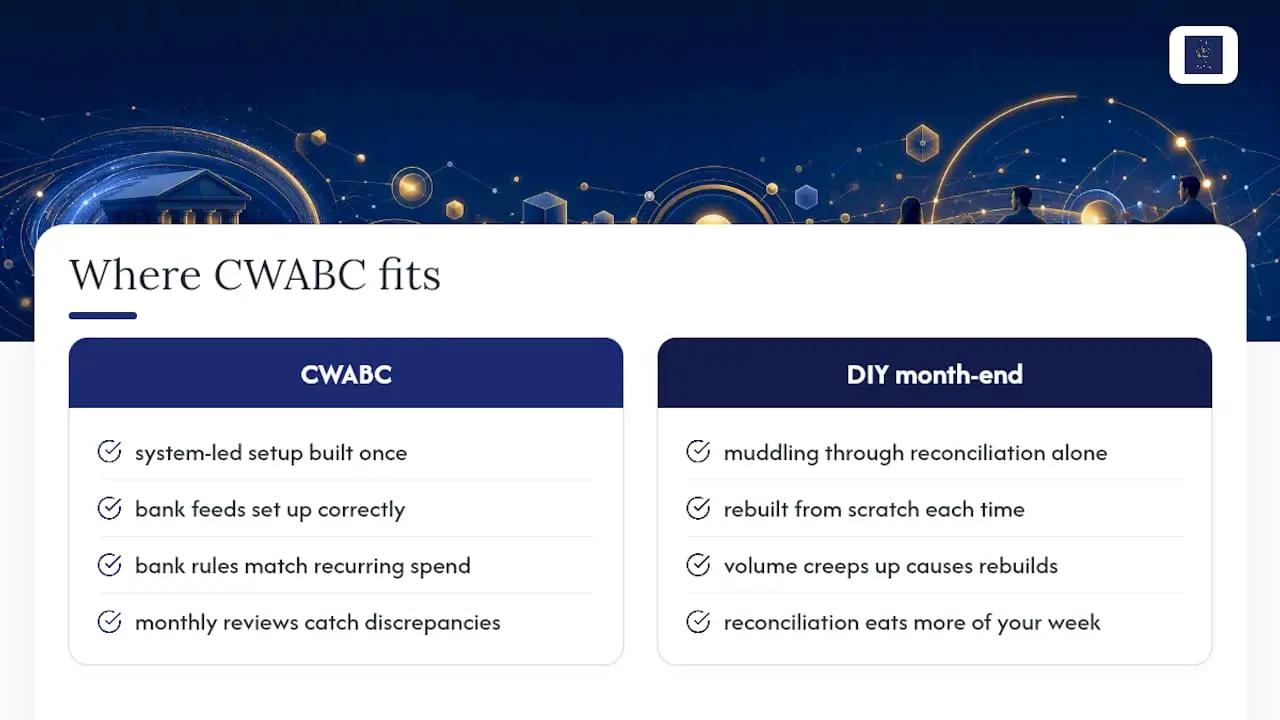
CWABC gives Kent and Tonbridge business owners a direct alternative to muddling through reconciliation alone at month-end: a system-led setup where your bank feeds, bank rules, and monthly reviews are built once and then simply run, rather than rebuilt from scratch every time volume creeps up.

I set up bank feeds correctly from day one, write bank rules that actually match your recurring spend without misfiring, and run monthly reviews that catch discrepancies before they snowball into a year-end scramble. This suits sole traders juggling client work alongside their books, landlords managing multiple property accounts, and small employers who need Making Tax Digital readiness built in rather than bolted on later. My bookkeeping FAQ page covers the detail of how engagements typically work, and if reconciliation is already eating more of your week than it should, my guide on signs your bookkeeping needs professional help is worth a read.
If you’d rather hand the whole process over, get in touch to arrange a quote and I’ll talk through what a properly automated Xero setup would look like for your business.
Need help?
If Xero reconciliation is taking longer than it should, or you’re not confident your bank feed and rules are set up correctly, I can help you build a workflow that actually saves time each month. Get in touch here and I’ll talk through what would work best for your business.