Switching accounting software feels bigger than it is. Done calmly, with a clear date, tidy records and a plan for opening balances, moving to Xero is a practical project you can finish in days rather than weeks. This guide walks UK sole traders, landlords, startups and small limited companies through each step: choosing a migration date, moving contacts, setting opening balances, handling unpaid invoices, connecting bank feeds, checking VAT settings and keeping your historical records safe. It also covers when Xero is not the right answer, because it is not automatically suitable for every business.
TL;DR
- You can switch at almost any time if you have closing balances, but the end of a month, quarter or financial year is usually the cleanest point.
- The core job is accurate opening balances: bank, customers who owe you, suppliers you owe, VAT and equity must match your old records on the day before you start.
- Not everything transfers. Payroll, CIS details, filed VAT returns, fixed assets and attachments often need separate handling, so keep your old records.
- Check VAT, the financial year and tax rates in Xero before you post a single transaction, and reconcile your first month line by line.
- If you are a sole trader or landlord, choose software that will also support Making Tax Digital for Income Tax, so you only change system once.
Table of Contents
- Is Xero the right move for your business?
- When is the best time to switch?
- Choose how you will migrate
- What transfers to Xero, and what does not
- Step-by-step: moving to Xero
- Migration checklist
- Checking the numbers after you switch
- Common mistakes when moving to Xero
- Moving from spreadsheets or another system
- A note for sole traders and landlords: Making Tax Digital
- My view: why a careful move beats a fast one
- How I can help with your move
- FAQ
- Need help?
- Sources
Is Xero the right move for your business?
Before you plan a migration, ask a more basic question: should you move at all? Xero is a cloud accounting package. It handles invoicing, bank feeds, bank reconciliation and VAT returns, and Xero lists several plans, including Ignite, Grow, Comprehensive and Ultimate. Many small businesses find it a good fit. Some do not, and that is fine.
Xero tends to suit you if:
- you want your records up to date through the year, rather than a pile of receipts at the deadline;
- you want your accountant or bookkeeper to see the same figures you see, without emailing files back and forth;
- you invoice regularly and want bank feeds to do the repetitive matching;
- you need to file VAT returns or soon will need to keep digital records for Making Tax Digital.
It may be less suitable if:
- you have a handful of transactions a year and a simple spreadsheet already does the job;
- you rely on detailed stock control or manufacturing features that need a specialist system;
- your current software already works, is compliant and your adviser is comfortable with it, so a move would only add cost and disruption;
- you are not comfortable with monthly subscriptions or with learning a new system during your busiest season.
There is no shame in staying put. A system you use consistently beats a better system you avoid. If you are unsure, a short conversation about how you actually work usually settles it.
When is the best time to switch?
Xero says you can switch at any time provided you have closing balances, with year-end, half-year and quarter-end popular choices. That matches what makes sense in practice. Here is how to choose.
Pick a clean cut-off date
Your migration date, sometimes called the conversion date, is the day your old system stops and Xero begins. Everything up to the day before sits in your old records. Everything from that date lives in Xero. Good dates are:
- The start of your financial year. The simplest option. Opening balances are your closing balances from the year just finished, ideally already agreed with your accountant.
- The start of a VAT quarter. Useful if you file VAT returns, because one return is never split across two systems.
- The start of a month. A sensible choice if you need to move mid-year. Reconcile your bank to the last day of the previous month first.
Dates to avoid
- The week a VAT return, Self Assessment deadline or payroll run is due.
- The middle of a VAT quarter, unless you have no alternative. You can do it, but you will need to combine figures from two systems when you file.
- A date when you have not reconciled your bank for the previous months. Fix that first.
Why Making Tax Digital affects your timing
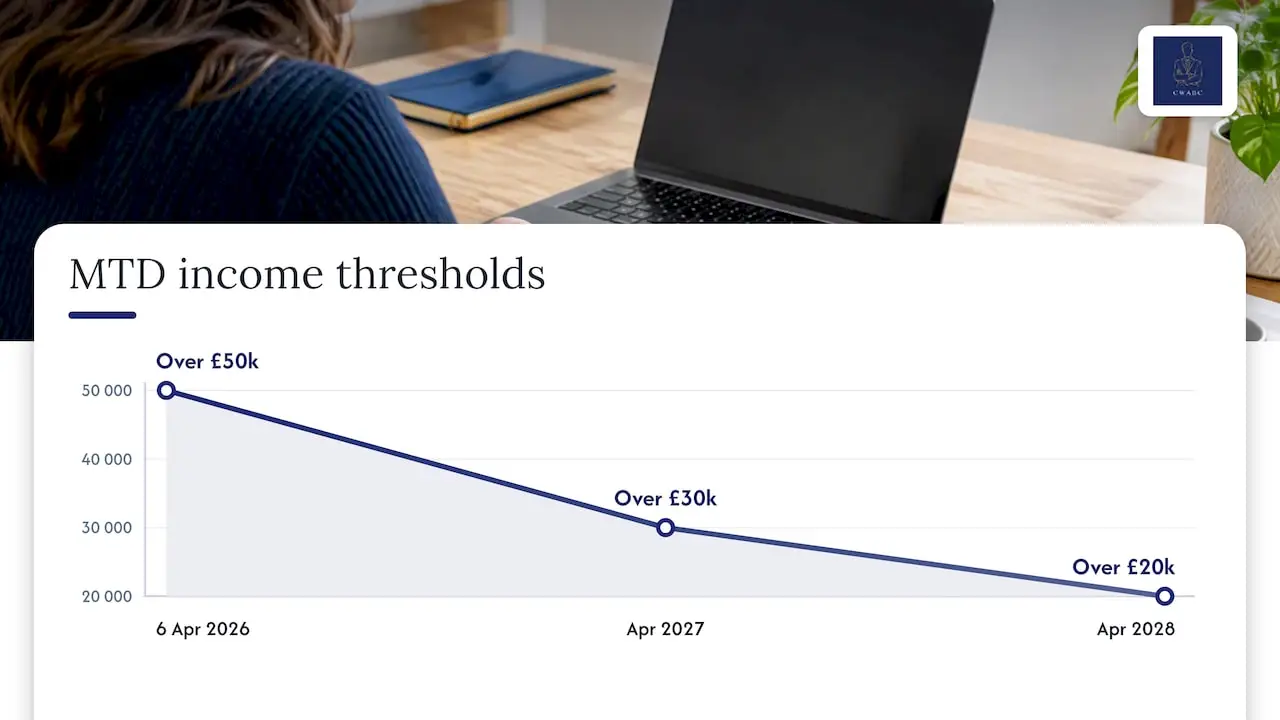
If you are a sole trader or landlord, the timing question has a second layer. From 6 April 2026, those with qualifying annual income over £50,000 must use Making Tax Digital for Income Tax, which means digital records and quarterly updates through compatible software. The threshold falls to £30,000 in April 2027 and £20,000 in April 2028. If your income is heading towards those levels, it makes sense to move once, to software that will cope, rather than twice. My guide to MTD ITSA for UK sole traders explains who is affected and when.
Choose how you will migrate
There are three realistic routes. Xero describes them as using a Xero-certified adviser, an automated conversion service, or doing the conversion yourself, and the right choice depends on your time, your bookkeeping skills, your budget and the state of your records.
| Route | Best for | Watch out for |
|---|---|---|
| Do it yourself with Xero’s import tools | Small, tidy sets of records; spreadsheets with clean columns; confident users | Easy to import duplicates or mis-code balances; no second pair of eyes |
| Automated conversion service | Moving from another accounting package with a lot of history | Limits on what converts; you still need to check the result |
| Assisted migration by an accountant or bookkeeper | Mixed records, VAT, payroll or CIS involved, or limited time | Agree scope and fee upfront; make sure you understand what you are getting |
On cost, Xero’s UK switching page says it covers the initial data transfer, and that Movemybooks conversions of up to 24 months are free, with additional years costing £60 plus VAT per year. Check that page for the current terms before you commit, as offers and limits can change.
How much history do you need?
You do not have to bring everything across. Xero suggests deciding how much historical data you actually need and organising your records before importing. For most small businesses, the current financial year plus comparative figures from the previous year is plenty. Older years can stay in your old software as a read-only archive or as exported reports.
What transfers to Xero, and what does not
This is where most surprises happen. Conversion tools are good at the core ledger. They are not magic. Movemybooks states that it transfers contacts, the chart of accounts, account balances, customer and supplier balances, and transactions in the conversion period. The same page lists things it does not convert, including budgets, projects, stock and product items, fixed assets, orders, drafts, bank statements, payroll and employee records, filed VAT returns, attachments and CIS details.
Other routes will have their own limits, so the principle matters more than any one list: assume anything outside the core ledger needs a manual plan.
| Item | Typically moves automatically? | What I would do |
|---|---|---|
| Contacts (customers and suppliers) | Often yes | Clean the list first; remove duplicates and old suppliers |
| Chart of accounts | Often yes | Tidy it before or straight after; see below |
| Opening balances | Yes, or entered by you | Reconcile against your trial balance |
| Unpaid invoices and bills | Sometimes | Check each one against your old aged reports |
| Fixed assets and depreciation | Often no | Re-enter from your asset register |
| Payroll and employee records | Often no | Set up payroll properly in its own process |
| CIS details | Often no | Re-enter contractor and subcontractor details |
| Filed VAT returns | Often no | Save copies as PDFs |
| Attachments and receipts | Often no | Archive them in a secure folder |
Step-by-step: moving to Xero
1. Get your old records into order
Before you change anything, bring your old system up to date. That means:
- Reconcile every bank and card account up to your cut-off date.
- Post outstanding invoices, bills and expenses so nothing is missing.
- Run a trial balance as at the day before your migration date.
- Run aged receivables (who owes you) and aged payables (who you owe) reports for the same date.
- Save year-end reports, VAT returns and the accounts your accountant produced.
These reports become your proof. If Xero matches them on day one, you can trust it.
2. Set up the Xero organisation
When you create your organisation, do not rush past the settings. Xero recommends confirming your financial settings and tax rates, the financial year and the chart of accounts, then entering opening balances and completing organisation details such as name, contact information and logo. The same guidance explains that these settings drive VAT reporting, the financial year, transaction timestamps and fixed-asset depreciation, so errors here ripple through everything.
Check in particular:
- Financial year end. It must match your Companies House or HMRC accounting period.
- VAT scheme and period. Standard or flat rate, cash or accrual, and your quarter stagger.
- Tax rates. Make sure standard, reduced, zero-rated, exempt and outside-scope rates are set the way you use them.
- Base currency. Pounds sterling for most UK businesses.
3. Move your contacts
Export customers and suppliers from your old system or spreadsheet and clean them before importing:
- remove duplicates and anyone you will never deal with again;
- make sure names are consistent, because Xero uses them to match bank feed rules and invoices;
- add email addresses, so invoice reminders can reach the right person;
- keep a note of VAT numbers for suppliers and customers where relevant.
A contact list of 80 names, half of them dormant, will slow you down every day. Tidy it once now.
4. Build a chart of accounts you can live with
The chart of accounts is the list of categories every transaction is coded to. Importing a bloated old one just carries the mess forward. Aim for something short and meaningful, and match it to how you report to HMRC. I explain how in my guides on setting up a Xero chart of accounts properly and keeping it to 30 to 50 accounts.
5. Enter opening balances
Opening balances are the financial position on the day before your migration date. They normally include:
- bank and cash balances, as per your reconciled statements;
- money owed by customers, entered as individual unpaid invoices;
- money owed to suppliers, entered as individual unpaid bills;
- VAT liability or refund due;
- fixed assets, loans, director’s loan account and other balance sheet items;
- equity or retained earnings.
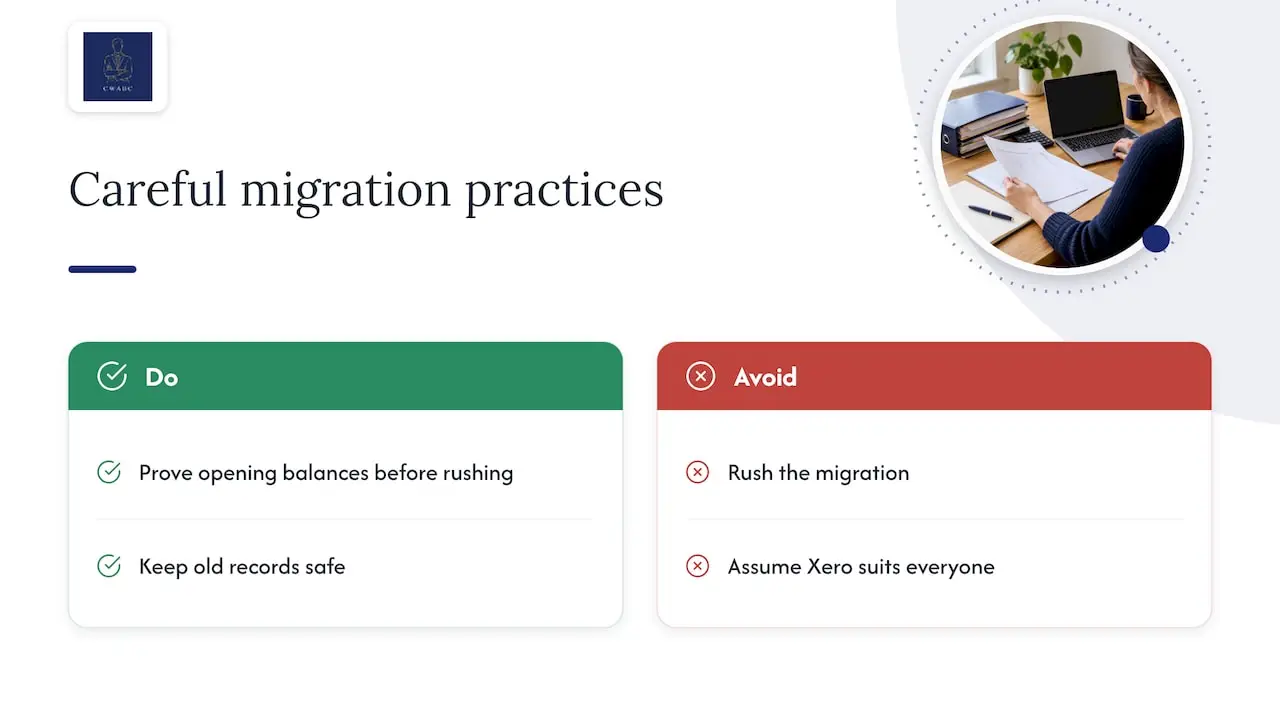
The golden rule: the opening trial balance in Xero must equal the trial balance you saved from the old system, line for line. If it is off by a few pounds, find out why. Never bury differences in a suspense account and hope. My walkthrough, Day One Opening Balances, shows the process with an example.
6. Bring across unpaid invoices and bills
Unpaid items are the part people most often get wrong. There are two ways to do it:
- Individual invoices. Enter each outstanding sales invoice and supplier bill with its original date, number and amount. When payment arrives, you can match it properly, and your aged reports stay meaningful.
- One lump sum. Quicker, but you lose the detail, and you cannot chase specific customers or match specific payments.
For almost every small business I would use individual items. If a customer has paid you since the cut-off date, enter the invoice and then record the payment, so your bank reconciliation lines up.
A worked example: a plumber moves on 1 April. On 31 March, three customers owe £420, £1,150 and £280, and one supplier is owed £640. In Xero, she enters those three invoices dated before 1 April and one bill, each as an opening item. Aged receivables in Xero then shows £1,850, the same as her old report. When the £1,150 customer pays in April, she matches the bank line to that invoice. Nothing is double counted.
7. Connect bank feeds
Bank feeds pull your transactions into Xero automatically so you can reconcile them. A few practical tips:
- Connect each bank and credit card account, and set the feed to start from your migration date, not before.
- Import earlier statements by file only if you need them. Otherwise, you risk duplicating transactions already in your opening balances.
- Create bank rules for repeat items such as rent, software subscriptions and fuel, so coding gets quicker each month.
- Check the opening bank balance in Xero against your bank statement for the day before.
8. Check VAT settings
If you are VAT registered, VAT is the highest-risk area of any migration. Before you file from Xero:
- Confirm your VAT number, scheme, accounting basis and return period.
- Check that your tax rates are applied to the right accounts.
- Make sure transactions from before the cut-off but within the current VAT quarter are accounted for, either in Xero or by combining reports from both systems.
- Run a draft VAT return and compare it with your own calculation.
- Save your last return from the old system.
If you are near the threshold and not yet registered, read my guide to VAT registration so you switch with the right settings from the start, and see how a VAT return works if it is new to you.
9. Keep your historical records
HMRC expects you to keep records for a set period, and your old data does not stop mattering because you changed software. Before you cancel the old subscription or close the old file:
- export a full trial balance, profit and loss, balance sheet, aged reports and transaction listing for each year;
- save filed VAT returns and supporting reports as PDFs;
- archive receipts and attachments that did not transfer;
- store everything securely with a clear folder structure by year;
- ask whether your old provider keeps read-only access after you cancel, and for how long.
It is worth a few minutes to check the exact retention periods on GOV.UK for your type of business before you delete anything.
Migration checklist
Print this and tick through it.
Before the move
- [ ] Decide whether Xero genuinely suits how you work
- [ ] Choose a migration date (start of a month, VAT quarter or year)
- [ ] Reconcile all bank and card accounts to the day before
- [ ] Post all outstanding invoices, bills and expenses
- [ ] Run and save a trial balance, aged receivables and aged payables
- [ ] Clean the contacts list
- [ ] Decide how much history to bring over
- [ ] Choose your route: DIY, conversion service or assisted
During the move
- [ ] Set financial year end, VAT scheme and tax rates
- [ ] Set up the chart of accounts
- [ ] Import contacts
- [ ] Enter opening balances and match them to the old trial balance
- [ ] Enter unpaid invoices and bills individually
- [ ] Re-enter fixed assets, CIS and payroll details where needed
- [ ] Connect bank feeds from the migration date
After the move
- [ ] Reconcile the first month fully
- [ ] Compare the first draft VAT return with your own figures
- [ ] Set up bank rules and invoice templates
- [ ] Invite your accountant or bookkeeper as a user
- [ ] Export and archive all old records
- [ ] Cancel the old subscription only once everything agrees
Checking the numbers after you switch
The move is not finished when the data lands. It is finished when you have proved the numbers. Do this in your first month:
- Compare the trial balance. Run the Xero trial balance at the migration date and match it to the old one.
- Check aged reports. Receivables and payables should equal your saved reports on day one.
- Reconcile the bank. Every line in the feed should be matched to an invoice, bill or coded transaction. The reconciled balance in Xero should equal the bank statement balance.
- Look for odd items. Unreconciled old items, duplicated payments and anything sitting in a suspense or uncategorised account need explaining.
- Review the profit and loss. Does it look about right against what you expect? A very high or very low figure in one category often means a coding mistake.
- Run a VAT draft. If the figures are far from your own calculation, find out why before you file.
Treat the first month as a trial run. It is perfectly normal to tweak bank rules and account codes as you learn how the system behaves.
Common mistakes when moving to Xero
These are the problems I see most often, and all of them can be avoided.
- Migrating in the middle of a VAT quarter without a plan. Figures end up split across two systems and the return does not agree.
- Skipping the bank reconciliation beforehand. Errors in the old file are carried across and become harder to find.
- Entering unpaid invoices as one lump sum. You lose track of who owes what.
- Importing years of bank history on top of opening balances. This duplicates transactions.
- Not checking VAT and tax rates. A wrong default rate quietly misstates every invoice.
- Copying a messy chart of accounts. Eighty accounts with overlapping names make reporting hard.
- Forgetting payroll, CIS and fixed assets. Many conversions leave these out, so they need their own setup.
- Cancelling the old system too early. Keep it until you have reconciled at least one full month, and have exported everything.
- Assuming the software handles compliance for you. Software records and submits. You are still responsible for the accuracy of what goes to HMRC.
Moving from spreadsheets or another system
From spreadsheets
Spreadsheets are the easiest source to move from, because there is no old software to unpick, but the quality of data varies widely. The usual work is to turn a running list of income and spending into dated, categorised transactions, then rebuild unpaid invoices and opening balances. I cover this in more depth in moving from Excel to cloud accounting.
From QuickBooks, FreeAgent or another package
Moving between cloud systems is usually smooth for contacts, balances and recent transactions. Differences show up in how each system treats VAT, tax codes, projects, stock and attachments. Expect to rebuild settings rather than copy them, and keep the old reports as your reference.
From a desktop package
Desktop software often has long histories and heavier customisation. It is worth being strict about how much history you carry across and spending extra time on opening balances.
A note for sole traders and landlords: Making Tax Digital
If you complete Self Assessment, you may soon be required to keep digital records and send quarterly updates. A migration is a natural moment to get ready. Choose software that supports MTD for Income Tax, set up your income and expense categories so they map neatly to what HMRC asks for, and keep your records current each month so quarterly updates take minutes rather than hours.
Landlords have a few extras, such as splitting rental income by property and keeping furnished and unfurnished costs apart. My guide to Making Tax Digital for landlords and the MTD requirements checklist explain what to prepare. Sole traders may prefer the sole trader transition guide.
My view: why a careful move beats a fast one
When someone tells me they are worried about switching software, the worry is almost never about the software. It is about trust. They fear that the figures will not match, that a VAT return will go in wrong, or that they will lose something they cannot get back.
My approach is simple. I work directly with you, not through a team or a call centre, and I use plain English throughout. I would rather spend an extra hour proving your opening balances than rush the migration and spend a month tracing a difference. I also think you should keep your old records safe until the new ones have earned your trust.
I do not think everyone should move to Xero. I work with Xero, QuickBooks and FreeAgent, so I can talk through what suits your business honestly. For some, Xero is a great fit. For others, a different package or a well-built spreadsheet is the more sensible choice. The right answer depends on your size, your VAT position, how often you invoice and how comfortable you are with the software day to day.
Whatever you choose, your goal should be the same: records that are accurate, organised and ready for HMRC without a last-minute scramble.
— Chris
How I can help with your move
If you would rather not do the migration alone, I can help with each stage. That includes choosing a sensible migration date, cleaning contacts and the chart of accounts, working out and entering opening balances, bringing across unpaid invoices and bills, connecting bank feeds, checking VAT settings and reconciling your first month. I can also train you to use the system so it works for you afterwards, not just on day one.
You can see how this fits together on my accounting software setup page, or read about accounting software setup in Kent if you are local to Tonbridge or Sevenoaks. I work remotely with clients across the UK too. If ongoing support is what you need once you have switched, my bookkeeping services keep your records current month by month.
Pricing is agreed clearly upfront, so you know what you are paying for before we begin.
FAQ
How long does it take to move to Xero?
For a small business with tidy records, the set-up and data transfer can often be done in a few days. The slower part is usually preparing your old records and checking the numbers afterwards. Allow a full month to reconcile and feel confident, especially if VAT is involved.
Can I switch to Xero in the middle of the tax year?
Yes. Xero says you can switch at any time as long as you have closing balances. The start of a month or VAT quarter is easiest. Mid-year moves just need careful opening balances and a plan for any VAT or Self Assessment figures that straddle both systems.
Will all my old data move across?
Not necessarily. Core items such as contacts, balances and transactions often move, but things like payroll records, CIS details, fixed assets, filed VAT returns and attachments commonly do not, as the limitations listed by one conversion service show. Always export and keep your old reports and documents.
Do I need Xero for Making Tax Digital?
No. You need software that is compatible with Making Tax Digital, and several packages are. Xero is one option. What matters is that your records are digital, up to date and able to send the required updates to HMRC. Check the HMRC guidance on GOV.UK for the rules that apply to you.
Should I do the migration myself or get help?
If your records are small and tidy, doing it yourself is realistic. If you have VAT, payroll, CIS, several bank accounts or years of messy history, help usually saves time and avoids costly mistakes. Either way, have someone check your opening balances.
Need help?
If you are thinking about moving to Xero, or you are unsure whether it is right for you, I am happy to talk it through in plain English. Get in touch with me here and tell me about your business, and I will explain what I can do to help.
Sources
- Switch to Xero | Xero UK
- How to change your accounting software | Xero Blog
- Limitations of Service Xero | Movemybooks
- Confirm your organisation’s key settings | Xero Central
- Making Tax Digital for Income Tax for sole traders and landlords | GOV.UK
- One year until Making Tax Digital for Income Tax launches | GOV.UK