
In QuickBooks Online, reconciliation means matching your cleared transactions against the bank statement until the difference reads £0.00. Reconcile monthly, working from the actual statement ending balance rather than the bank feed screen. If the difference isn’t zero, stop and investigate the cause. Never force an adjustment just to make the numbers agree.
TL;DR:
- Reconcile each account monthly before reviewing the statement ending balance, and never force adjustments to make the figures balance.
- Clear the bank feed completely before starting reconciliation and treat the paper statement as the source of truth for accuracy.
- Match transactions to the statement in date order, grouping batch deposits, and check for differences using discrepancy reports if the balance is not zero.
- Regularly save reconciliation reports and audit trails to identify and resolve discrepancies caused by edited or missing transactions.
- Seek professional help for complex issues like repeated balance shifts or multiple months of errors, to ensure accurate and compliant bookkeeping.
Table of Contents
- Key rules for QuickBooks bank reconciliation
- What’s the difference between bank feed matching and reconciliation?
- Why does reconciliation protect your cash position and tax reporting?
- How do you reconcile a bank account in QuickBooks Online step by step?
- How do you fix common QuickBooks reconciliation discrepancies?
- Which reports and audit tools should you keep on file?
- When should you get professional help with reconciliation problems?
- A bookkeeper’s honest view on reconciliation habits
- Need practical help getting your QuickBooks reconciliation under control?
- Sources
Key rules for QuickBooks bank reconciliation
A few habits separate tidy books from a reconciliation mess that takes hours to unpick later.
- Reconcile every account every month while the statement details are still fresh in your mind.
- Clear the entire bank feed queue (matched, added, or excluded) before you touch the formal reconcile screen.
- Never force a balancing adjustment to hit £0.00 — a hidden discrepancy today becomes next year’s headache.
- Keep the previous month’s reconciliation report to hand so you can confirm the opening balance carries through correctly.
- Treat the paper or PDF bank statement as the source of truth, not the on-screen feed.
What’s the difference between bank feed matching and reconciliation?
These are two different jobs, and confusing them is the single biggest cause of reconciliation headaches. The bank feed pulls transactions from your bank connection and lets you add, match, or exclude them against entries already in QuickBooks. It speeds up data entry, but it never checks your running total against an actual statement, and it won’t flag a transaction that someone has since deleted or edited.
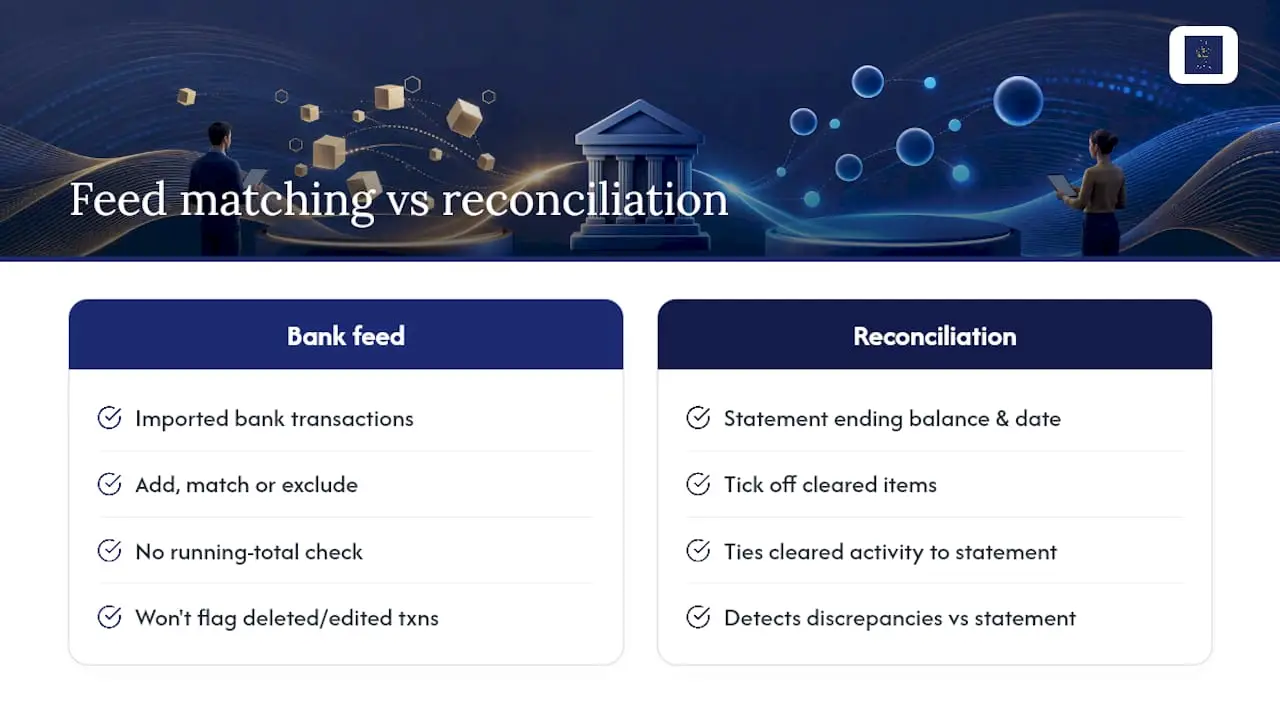
Formal reconciliation ties your cleared activity to the closing balance printed on your bank statement for that period. You enter the statement’s ending balance and date, tick off everything that’s cleared, and QuickBooks calculates a difference. Get that difference to £0.00 and you have proof, not just a hopeful feed screen showing everything marked “matched”. Feed matching and reconciliation are genuinely separate processes, and only one of them is an audit.
Why does reconciliation protect your cash position and tax reporting?
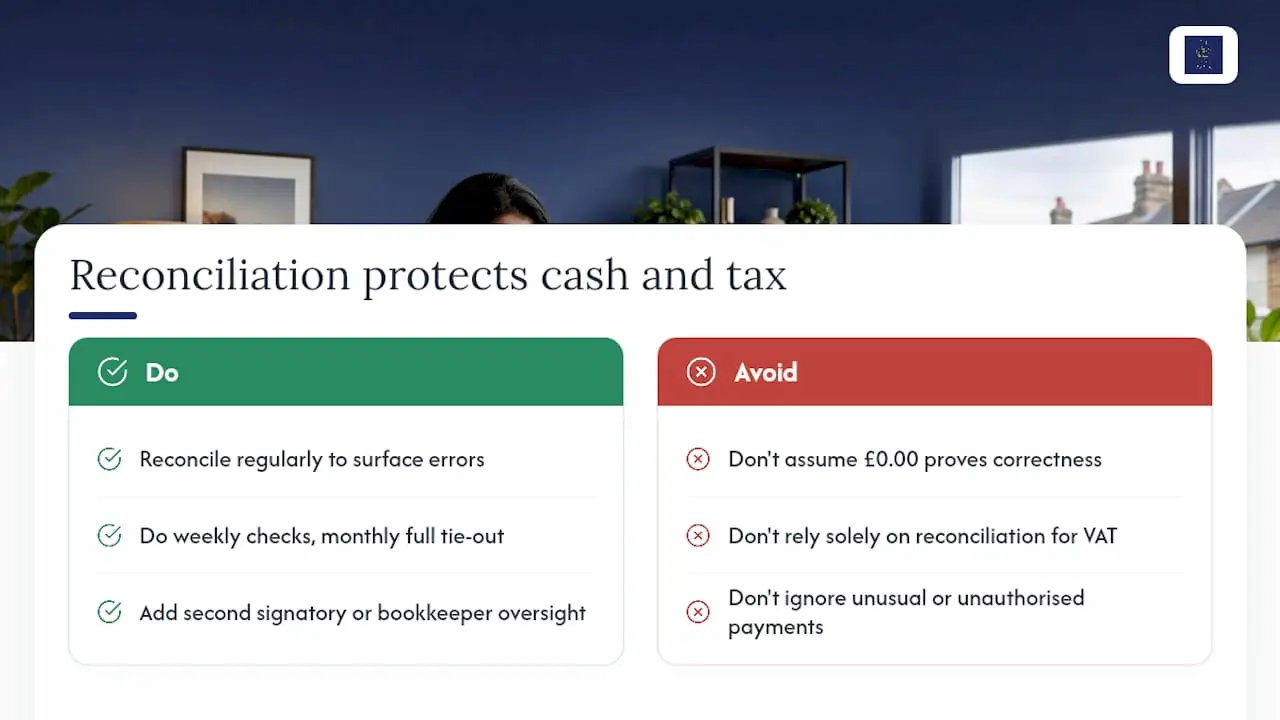
Reconciliation is where duplicate entries, missing receipts, unrecorded bank charges, uncleared cheques and timing differences all surface. Miss one of these and your bank balance on the dashboard simply won’t match reality, which matters the moment you need to borrow, forecast, or explain a VAT position to HMRC.
Here’s the catch many business owners miss: a reconciliation showing £0.00 difference does not confirm your bookkeeping is correct. You can reconcile perfectly while a supplier payment sits in the wrong expense category, or VAT gets coded to the wrong rate. The bank balance ties out; the profit and loss and VAT return can still be wrong. Reconciliation confirms completeness, not classification, so it’s one control among several, not the whole answer.
Regular reconciliation also gives you an early warning system for anything unusual, including unauthorised payments, which matters more once you’ve added a second signatory or a bookkeeper to the account. Weekly checks alongside a monthly full tie-out catch problems while they’re still small and easy to trace.
How do you reconcile a bank account in QuickBooks Online step by step?
This process is written around what you’re actually trying to achieve, not the exact button names, because QuickBooks does update its interface from time to time.
- Gather your evidence first. Get the actual bank statement (PDF or paper) for the period, note the previous reconciliation’s closing balance, and confirm you have the right access level to make changes if needed.
- Clear the banking feed queue completely. Go through every imported transaction and either match it to an existing entry, add it as new, or exclude it if it’s a duplicate or doesn’t belong in the business account. Don’t start the formal reconcile with unreviewed items sitting in the feed.
- Open the reconcile function and enter the statement details. Input the statement ending balance and the statement date exactly as printed. This is the figure QuickBooks will reconcile against.
- Tick off every transaction that appears on the statement. Work down the list methodically, ideally in date order, comparing each line against the paper statement rather than trusting your memory of what should be there.
- Watch the running difference as you go. It should move towards zero as you tick items off. If it stalls or moves the wrong way, stop ticking and check what you’ve just selected.
- Deal with lump-sum deposits from payment processors separately. If you take card payments through a processor like Stripe or similar, the bank often shows one net deposit for several individual sales. Group those payments to match the bank’s batch structure, using Undeposited Funds or a similar grouped-deposit approach, before you try to tick them off against the statement.
- If the difference isn’t £0.00 once everything’s ticked, don’t force it. Run the Reconciliation Discrepancy Report to see what’s changed since your last successful reconciliation, and check the audit log for anything edited or deleted that was previously part of a reconciled period.
- Confirm the beginning balance matches your last reconciliation’s ending balance. A mismatch here almost always means something in a prior period has been altered.
- Finish and save. Once the difference reads £0.00, complete the reconciliation and save or export the reconciliation report as your evidence for that period.
Pro Tip: Before you start any tie-out, count the number of lines on the paper statement and compare that to the number of transactions sitting in your feed for the same period. A mismatch in count, before you’ve even looked at amounts, usually points straight to a missing import or a duplicate.
The online banking guide covers how imported transactions flow through to your accounts, which is worth reading alongside this if your feed connection has been unreliable. If you’re setting up QuickBooks Online fresh, getting your chart of accounts structured properly from day one makes every future reconciliation faster, because transfers, fees and processor deposits each have a sensible home rather than landing wherever’s convenient.
How do you fix common QuickBooks reconciliation discrepancies?
Most reconciliation problems fall into a handful of recognisable patterns. Work through them in this order rather than jumping straight to the biggest number on screen.
- Opening balance won’t match. This almost always means a transaction inside a previously reconciled period has been edited or deleted. The Reconciliation Discrepancy Report pinpoints the exact transaction, and it’s usually the fastest route back to a clean opening figure.
- Duplicate transactions from a reimported feed. Compare the total transaction count for the period against your statement line count; duplicates typically show as identical dates and amounts appearing twice.
- Missing items that never made it into the feed. Count statement lines against feed items, and if something’s genuinely absent, import it manually from your bank’s CSV export rather than typing it in from memory.
- Transfers posted as income or an expense. Search for round-figure movements between your own accounts that have landed in a sales or expense category instead of a transfer account, and decode them.
- Small pennies-level differences and unposted bank fees. Post the actual bank charge rather than nudging a balancing figure to make the screen agree.
Roughly 80% of matching gets handled automatically by modern bookkeeping software, which is exactly why the remaining fifth needs a human eye every month. Automation is very good at obvious matches and quietly poor at the odd one that doesn’t fit the pattern, so the errors that survive automated matching tend to be the ones worth catching. For firms handling client trust accounts, note that reconciliation becomes a three-way process that standard QuickBooks reports don’t natively produce, and specialist software may be the better route.
Which reports and audit tools should you keep on file?
Three reports do most of the heavy lifting once a reconciliation is complete, and each proves something slightly different.
- The reconciliation report is your static record of exactly what cleared on that statement period. Save it as a PDF the moment you finish, because once a later change alters figures, this snapshot becomes your proof of what the position was at the time.
- The Reconciliation Discrepancy Report lists every transaction that’s changed since your last successful reconcile, which is the fastest way to see who altered what and when a prior period stops matching.
- The audit log shows the trail of edits and deletions across the whole account, useful for tracing the root cause once the discrepancy report has pointed you towards a suspect transaction.
Export and file these alongside your other accounting records rather than trusting that QuickBooks will always retain historical detail exactly as you need it. If you’re a landlord or sole trader managing this yourself, my guide on reconciling a sole trader bank account walks through a simpler version of the same filing habit.
When should you get professional help with reconciliation problems?
Some situations are worth handing over rather than fighting through alone. Escalate when a previously closed month’s reconciliation has quietly changed, when an opening balance keeps shifting for no obvious reason, or when you’re facing several months of accumulated errors rather than one clean discrepancy.
A bookkeeper or accountant tackling a clean-up will typically run the discrepancy and audit reports first, rebuild any reconciliations that have been compromised, and correct VAT or balance sheet miscoding that a simple bank tie-out never would have caught on its own. That kind of clean-up engagement usually costs more, and takes longer, than the ongoing monthly service that would have prevented it. Accurate, routine bookkeeping tends to be the cheaper habit long term.
A bookkeeper’s honest view on reconciliation habits
The businesses that avoid reconciliation chaos aren’t the ones with the fanciest software. They’re the ones who treat reconciliation as a monthly discipline rather than a year-end scramble. I reconcile client accounts monthly and review the bank feed weekly, because a small error caught in week one takes minutes to fix and the same error caught in December can take hours.
I also attach a note or receipt to a transaction the moment I match it, not weeks later when the context has faded. And when a reconciliation is a penny out, I’d rather trace that penny than post a balancing journal that hides where it actually went. Forced adjustments feel efficient in the moment. They almost always cost more time later.
— Chris
Need practical help getting your QuickBooks reconciliation under control?
I offer QuickBooks setup and training, ongoing monthly bookkeeping, and one-off reconciliation clean-ups for sole traders, landlords, startups and limited companies, with fixed, agreed pricing set upfront and secure, paperless workflows throughout.

If your reconciliations have drifted, or you’re setting up QuickBooks Online for the first time and want the chart of accounts built properly from day one, get in touch through my contact page for a quick consult. Clients work with me directly, so you’re always speaking to the person actually doing the work.
Sources
For the official process, see QuickBooks’ own reconciliation guidance and its online banking guide. If you’d rather work from a spreadsheet as a backup check, this bank reconciliation Excel template is a useful fallback. For general bookkeeping habits that reduce reconciliation pain, read my guide on avoiding common bookkeeping errors as a self-employed business owner.
- Reconcile an account in QuickBooks
- Bankreconciler
- Bank reconciliation in UK accounting software | ReAI