
You must register as an employer with HMRC before your first payday, but you cannot do this more than two months before you actually start paying someone. Registration gives you an employer PAYE reference, which you need for every Real Time Information submission afterwards. If you’re about to take on your first member of staff, this is the job to sort out first.
TL;DR:
- Employers must register with HMRC before their first payday, but no earlier than two months before they start paying staff, to receive a PAYE reference.
- Accurate collection of employee details, including National Insurance number and starter checklists, is crucial for correct tax coding and payroll processing.
- Using approved payroll software or accounting services simplifies RTI submissions, with late FPS filings risking penalties, especially if deadlines are missed.
- Employer National Insurance contributions are an additional cost on top of employee wages, and correct employee category assignment impacts future contributions and benefits.
- Changes to business details, such as address or company structure, require timely updates to HMRC, with a new PAYE scheme often necessary for incorporation or major restructuring.
Table of Contents
- How to set up PAYE: the complete checklist
- When and how do you register as an employer with HMRC?
- What information do you need to register and run payroll?
- Choosing how to run payroll: software, tools, or an accountant
- RTI reporting and paying HMRC: FPS, EPS and deadlines
- What to do on your first payday: tax codes, NI and payslips
- Record-keeping, deadlines and the mistakes to avoid
- Where do workplace pensions fit into all this?
- Understanding employee tax codes and how to apply them
- Handling employee benefits and expenses through PAYE
- National Insurance categories: what employers and employees actually pay
- How to update or change your employer PAYE details
- Why I built my payroll service around first-time employers
- Let me set up and run PAYE so you don’t have to
- Sources
How to set up PAYE: the complete checklist
Registering for PAYE isn’t a single task, it’s a short sequence of jobs that need doing in the right order. Here’s the full run-through, from deciding you need staff to running your first pay day.
- Confirm the person is genuinely an employee. Not everyone you pay is on your payroll. Freelancers and subcontractors are usually handled differently, and this article doesn’t cover employment status rules, so check GOV.UK’s own guidance if you’re unsure.
- Register as an employer with HMRC, respecting the timing rules below.
- Choose your payroll method, whether that’s software, an accountant, or HMRC’s own free tool.
- Collect starter information from your new employee before their first payday.
- Run your first payroll and submit a Full Payment Submission (FPS) on or before payday.
- Pay HMRC what you owe, keep proper records, and check whether workplace pension duties apply.
Miss step two and everything after it stalls, so that’s where to focus your energy first.
When and how do you register as an employer with HMRC?
Timing catches out more new employers than anything else in this process. You must register before your first payday, but HMRC won’t let you register more than two months before you start paying staff. Registering too early is just as much a problem as registering too late, so pick your payroll start date first and count backwards from there.
- Register online through GOV.UK, which is the quickest route for most small employers.
- You can also register by phone if your situation is unusual (for example, you’re taking on your first employee partway through building a business).
- Your employer PAYE reference typically arrives within a few working days of applying, though it can take up to two weeks in busier periods, so don’t leave it until the week before payday.
- Decide your payroll start date carefully. It should align with your actual first pay period, not the date you registered.
- Nominate a PAYE contact within the business, usually the owner or director, since HMRC will write to this person about your scheme.
Once you have your reference, you’re legally set up to report pay and deductions through RTI.
What information do you need to register and run payroll?
Before you sit down to register, gather the details HMRC and your payroll software will ask for. Having everything ready turns a fiddly job into a fifteen-minute one.
For the business itself, you’ll need:
- Your trading name and business address
- Your company number, if you’re a limited company
- The date you intend to start paying staff (your payroll start date)
- A UK bank account for paying HMRC
For each employee, collect:
- Their National Insurance number
- Full name, home address, and date of birth
- A P45 from their previous employer, or their answers to the HMRC starter checklist if they don’t have one
- Their agreed pay frequency (weekly, fortnightly, or monthly)
Pro Tip: Ask new starters to complete the HMRC starter checklist before their first day, not on it. Chasing someone for their National Insurance number an hour before you run payroll is a stress you can easily avoid.
Choosing how to run payroll: software, tools, or an accountant
Once registered, you need a way to actually run payroll and report it to HMRC. There are three realistic options, and the right one depends on how many people you employ and how much time you want to spend on this.
- HMRC’s Basic PAYE Tools is free and works fine if you have a handful of employees with straightforward pay. It calculates deductions and produces the figures for your RTI submissions, but it’s basic by name and by nature. Don’t expect payslip design or integration with anything else.
- Commercial payroll software that’s HMRC-recognised gives you automation, ready-made payslips, and often links directly to accounting software like Xero or QuickBooks. Tools such as Altegio also show how payroll calculation features can extend into wider staff scheduling for service businesses. This is the sensible middle ground for most small employers.
- Outsourcing to an accountant makes sense once your pay elements get complicated, or you simply don’t have the time to keep on top of monthly deadlines. My payroll service handles registration, software setup, and ongoing submissions so you’re never chasing a deadline.
RTI reporting and paying HMRC: FPS, EPS and deadlines
Real Time Information reporting is the part of PAYE that trips up first-time employers most often, mainly because it’s genuinely real-time. You must submit a Full Payment Submission (FPS) on or before every payday, not after it. Late or missing FPS submissions can lead to penalties and, in HMRC’s eyes, a pattern of unreliable reporting.
An Employer Payment Summary (EPS) is different and less frequent. You’ll use one if:
- You didn’t pay anyone in a particular tax period
- You’re reclaiming statutory payments, such as statutory maternity or paternity pay
- You want to claim Employment Allowance against your employer National Insurance bill
Good payroll software submits both automatically once you enter the figures, which removes most of the manual risk. You can check what you owe HMRC through your PAYE Online account at any point, and most small employers pay monthly, though quarterly payment is allowed if your average liability is below the threshold HMRC sets for that arrangement. Missing an FPS deadline just once can trigger an automatic late filing notice, even if the underlying pay was correct, so treat the payday deadline as fixed, not flexible.
What to do on your first payday: tax codes, NI and payslips
Your first pay run is where all the preparation either pays off or falls apart. Work through this checklist before you press send on that first payment.
- If your new employee has a P45, use the tax code shown on it. If they don’t, use their starter checklist answers to work out the right code, defaulting to 0T Week 1/Month 1 if their circumstances are unclear.
- Every payslip must show gross pay, deductions (tax, National Insurance, and anything else such as student loan repayments), and net pay. You can deliver these by print or secure email, but they must arrive by payday.
- Calculate employer National Insurance contributions alongside the employee’s own deduction. As an employer, you carry a separate NI cost on top of gross pay.
- Check whether statutory pay applies (sick pay, maternity or paternity pay) and whether a student loan deduction is needed based on the starter checklist.
Get these right the first time and every subsequent pay run becomes far more routine.
Record-keeping, deadlines and the mistakes to avoid
HMRC expects you to keep payroll records for at least three years from the end of the tax year they relate to, covering FPS history, payslips, P60s, and any starter checklists you collected.
The recurring rhythm looks like this: submit an FPS on or before every payday, pay HMRC monthly (or quarterly if eligible), and complete your end-of-year tasks, including issuing P60s to employees by the end of May.
The errors I see most often among new employers are:
- Submitting the FPS late because payroll was run “when there’s time” rather than on a fixed schedule
- Applying the wrong tax code because starter information wasn’t collected properly
- Treating a genuine employee as self-employed without checking their status properly
Pro Tip: Set a recurring calendar reminder for your payroll date, not just your payment date. The two are easy to conflate, and conflating them is exactly how FPS submissions end up late.
Where do workplace pensions fit into all this?
Automatic enrolment is a separate legal duty from PAYE, but the two are joined at the hip operationally. If your employee is eligible, your payroll must calculate the right pension contributions and report them alongside pay and tax. Most commercial payroll software handles these calculations and submissions automatically, and it’s one more reason an accountant running your payroll can take the whole administrative burden off your plate.
Understanding employee tax codes and how to apply them
A tax code tells your payroll software how much tax-free pay an employee gets before deductions start. The most common code for someone with one job and the standard Personal Allowance is a number followed by “L”, though codes vary depending on individual circumstances, benefits, or previous underpayments HMRC is recovering.
Where does the code come from? Usually one of two places. If your new employee brings a P45 from a previous job, use the tax code shown on it exactly as it stands, unless HMRC later sends you an updated code through a P6 notice. If there’s no P45, because it’s their first job or they’ve genuinely lost the paperwork, you’ll rely on their answers to the starter checklist instead. This tells you whether it’s their only job, whether they have another job or pension running alongside it, and whether they’ve claimed certain benefits.
When none of that information is available, HMRC’s fallback is the emergency code, applied on a “Week 1/Month 1” basis so tax is calculated only on that period’s pay rather than cumulatively across the year. This avoids under or overtaxing someone based on assumptions about their earnings history.
Getting the code wrong isn’t just an inconvenience, it directly affects how much tax your employee pays from their very first payslip. Overtax them and you’ll have an awkward conversation; undertax them and HMRC will eventually claw the difference back, often through an adjusted code the following year. Whenever HMRC issues a new code for an existing employee, usually through their PAYE Online account or a coding notice, apply it from the next available pay run rather than waiting.
Handling employee benefits and expenses through PAYE
Once you start providing benefits beyond salary, such as a company car, private medical insurance, or interest-free loans above a small threshold, PAYE has to account for them too. Some benefits are “payrolled”, meaning you add their taxable value to gross pay each period and tax them in real time, which employees often prefer because it avoids a surprise tax code adjustment the following year.
If you don’t register to payroll benefits, you’ll report them annually instead using a P11D form after the tax year ends, with employer Class 1A National Insurance due separately on the total value. Both routes are legitimate, but you must register with HMRC before the tax year starts if you want to payroll benefits, so this isn’t a decision you can make retrospectively partway through the year.
Expenses work differently again. Genuine, reimbursed business expenses (mileage at HMRC’s approved rates, for example) don’t usually need to go through PAYE at all if they fall within HMRC’s exempt limits. Anything above those limits, or anything that isn’t a genuine business cost, typically becomes taxable and needs reporting.
Most small employers find that decent payroll software flags which benefits need payrolling and which need a P11D, but the initial decision about how you’ll handle benefits is yours to make, and it’s worth settling before you take on your first employee with a company perk attached, rather than working it out under pressure at year end.
National Insurance categories: what employers and employees actually pay
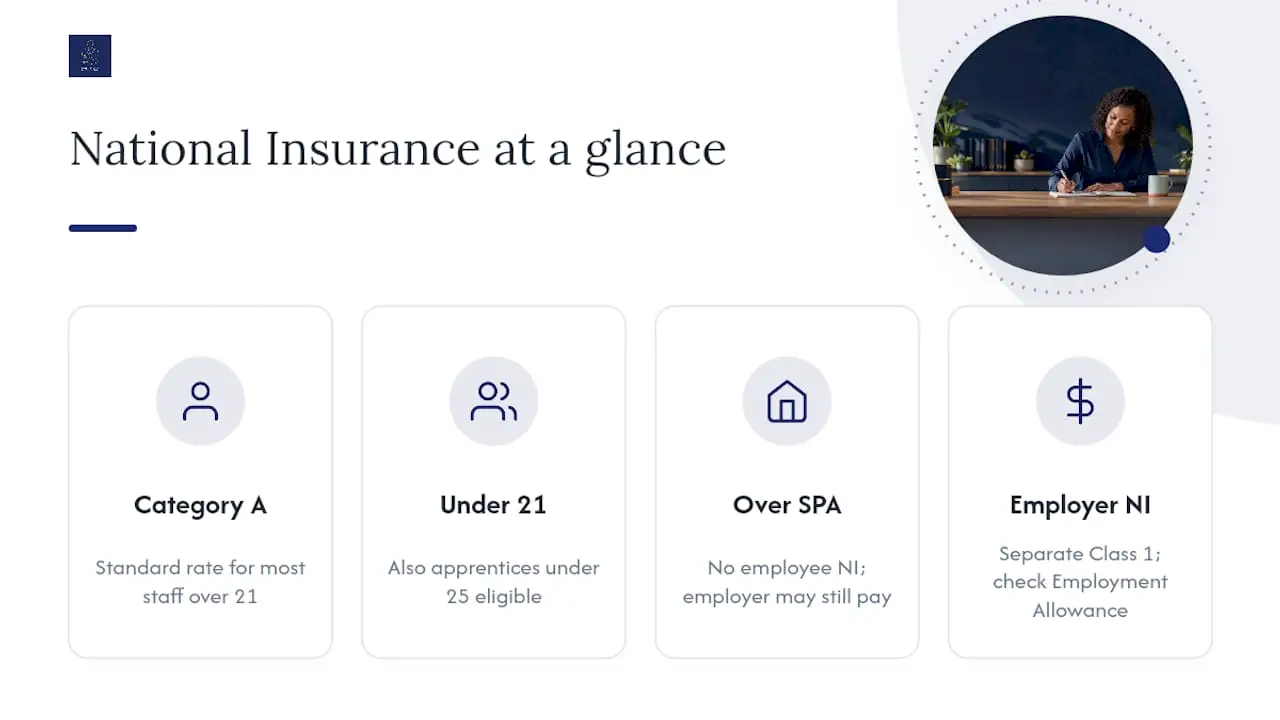
National Insurance runs alongside income tax through PAYE, but it works on a different logic. Employees pay Class 1 National Insurance on earnings above a set threshold, while employers pay a separate Class 1 secondary contribution on top of gross pay, an extra cost that catches some first-time employers off guard because it doesn’t come out of the employee’s wage at all.
Most employees fall under category A, the standard rate that applies to the majority of staff over 21 who aren’t in an exempted group. Other categories exist for specific situations, such as employees under 21, apprentices under 25, and those over State Pension age who no longer pay employee NI at all, though employer contributions can still apply depending on the category.
Your payroll software assigns the correct category automatically based on the employee’s date of birth and circumstances, provided you’ve entered accurate starter information. That’s yet another reason accurate onboarding data matters from day one, since an incorrect category can understate or overstate contributions for months before anyone notices.
Employers should also check their eligibility for Employment Allowance, which reduces your employer NI bill each year if you qualify, claimed through an EPS rather than an FPS. Many small employers are eligible but simply don’t claim it because nobody flagged it during setup.
How to update or change your employer PAYE details

Businesses change, and HMRC needs telling when yours does. If you move premises, change your business name, alter your legal structure (say, moving from sole trader to limited company), or stop employing staff altogether, your PAYE scheme details need updating.
Most changes can be reported through your PAYE Online account or via your payroll software, which often pushes updates through as part of routine RTI submissions. More significant changes, such as ceasing to be an employer entirely, require you to submit a final FPS marked as your last one for the scheme, along with an indication that the scheme should close.
If your business structure changes fundamentally, for example incorporating from a sole trader into a limited company, you typically need a new PAYE reference rather than simply amending the old one, since HMRC treats the new entity as a distinct employer. This is easy to overlook amid everything else involved in incorporating, so it’s worth building into your changeover checklist alongside company registration.
Keep your nominated PAYE contact detail current too. If the person HMRC correspond with leaves the business or changes role, update this promptly, since missed HMRC letters about coding notices or scheme queries can leave you responding late to something that needed immediate attention.
Why I built my payroll service around first-time employers
As an AAT-licensed practitioner running a cloud-led practice, I’ve watched enough new employers get tangled in PAYE timing rules to know where the real friction sits. My payroll clients get registration, software setup, live RTI submissions, and someone to call when a tax code looks wrong. If that sounds useful, get in touch for a short initial chat.
— Chris
Let me set up and run PAYE so you don’t have to
CWABC is the practical alternative to muddling through PAYE registration alone at 11pm before your first payday. I register your scheme, set up HMRC-recognised software matched to your business, run your first payroll correctly the first time, and keep every FPS and EPS submission on schedule afterwards.

That means no chasing tax codes, no wondering whether you’ve missed a deadline, and no guessing at employer National Insurance categories. Pricing is agreed upfront before any work starts, so there are no surprises once you’re a client. My payroll and CIS service covers everything from a single employee to a growing team, and I work with clients across Tonbridge, Sevenoaks, Kent, and remotely throughout the UK. If you’d rather hand this over than learn it from scratch, contact CWABC for a free first conversation about what setting up PAYE properly would look like for your business.
Need help?
If you’d rather have someone register and run PAYE correctly from day one, get in touch with CWABC for a straightforward conversation about your options.
This article is general information, not a substitute for advice from a qualified financial advisor. Consult a qualified financial professional about your own circumstances before acting on anything here.
Sources
For the primary steps, go straight to GOV.UK: register as an employer, review PAYE and payroll setup guidance, and check the step-by-step guide to employing someone for related duties. HMRC’s employer helpline can assist with registration issues or PAYE Online access problems if you get stuck.